
Buy button
The buy button sits on your product page, below the price. Customers click it to open the COD form. Make it stand out so customers know they can order with cash on delivery.
1. Open the Buy button tab
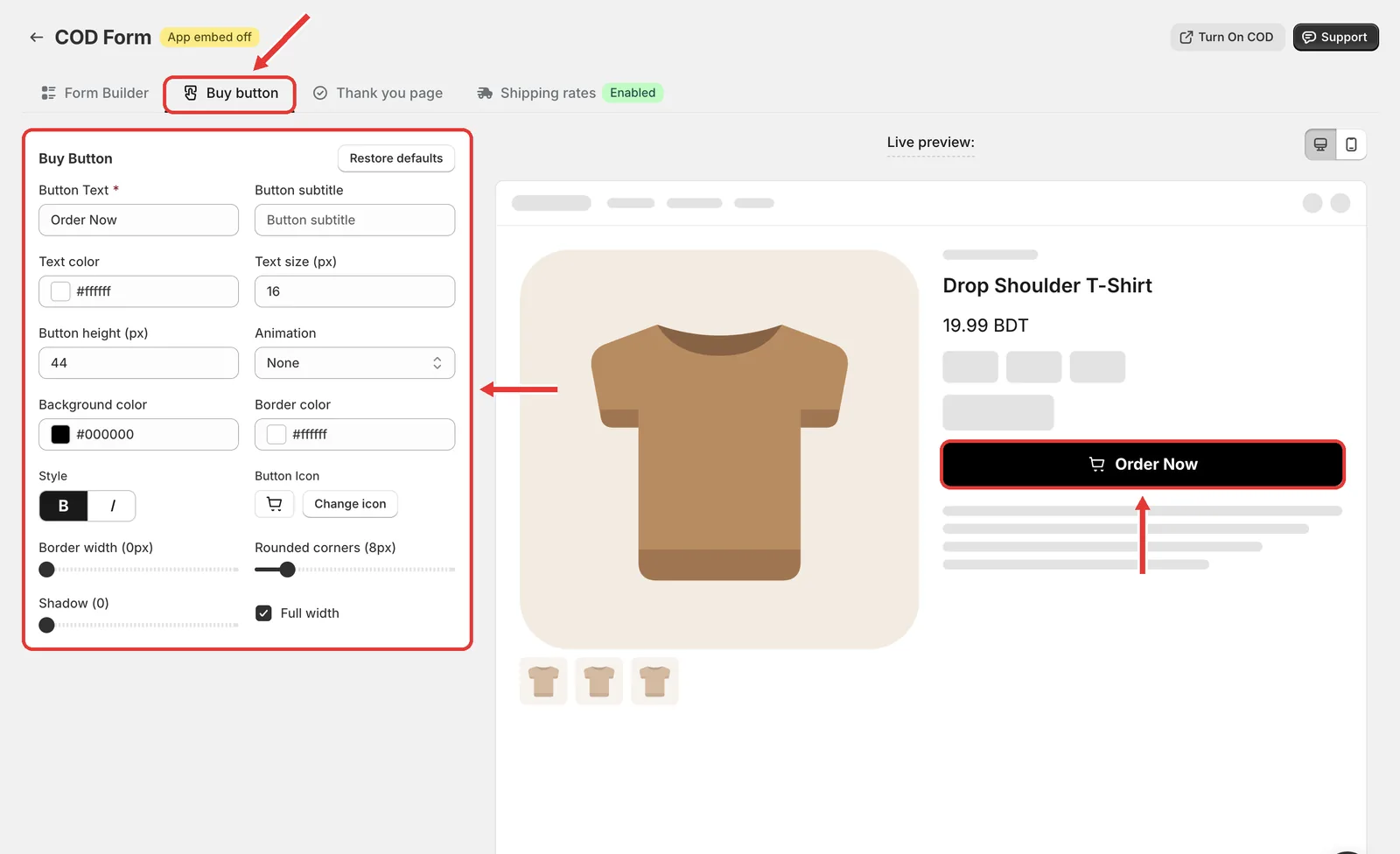
Open COD Form Builder in the app menu and click the Buy button tab. The Live preview on the right shows the button on a sample product page and updates as you edit.
2. Set the button text
- Button Text (required): what the button says, for example “Order Now” or “ক্যাশ অন ডেলিভারিতে অর্ডার করুন”.
- Button subtitle (optional): a smaller second line, for example “Pay when you receive it”.
- Button Icon: the icon before the text. Click Change icon to pick another.
3. Style the button
| Setting | What it changes |
|---|---|
| Text color and Text size (px) | Colour and size of the button text |
| Style | Bold (B) and italic (I) text |
| Button height (px) | How tall the button is. The default is 44. |
| Background color | The button’s fill colour |
| Border color and Border width | The button’s outline. A width of 0 means no border. |
| Rounded corners | Corner radius. 0 gives square corners. |
| Shadow | Adds depth under the button |
| Animation | Makes the button move to catch the eye. None keeps it still. |
| Full width | Stretches the button across the product form |
Use a colour that contrasts with your theme, so the button is the first thing customers notice.
4. Check it on mobile
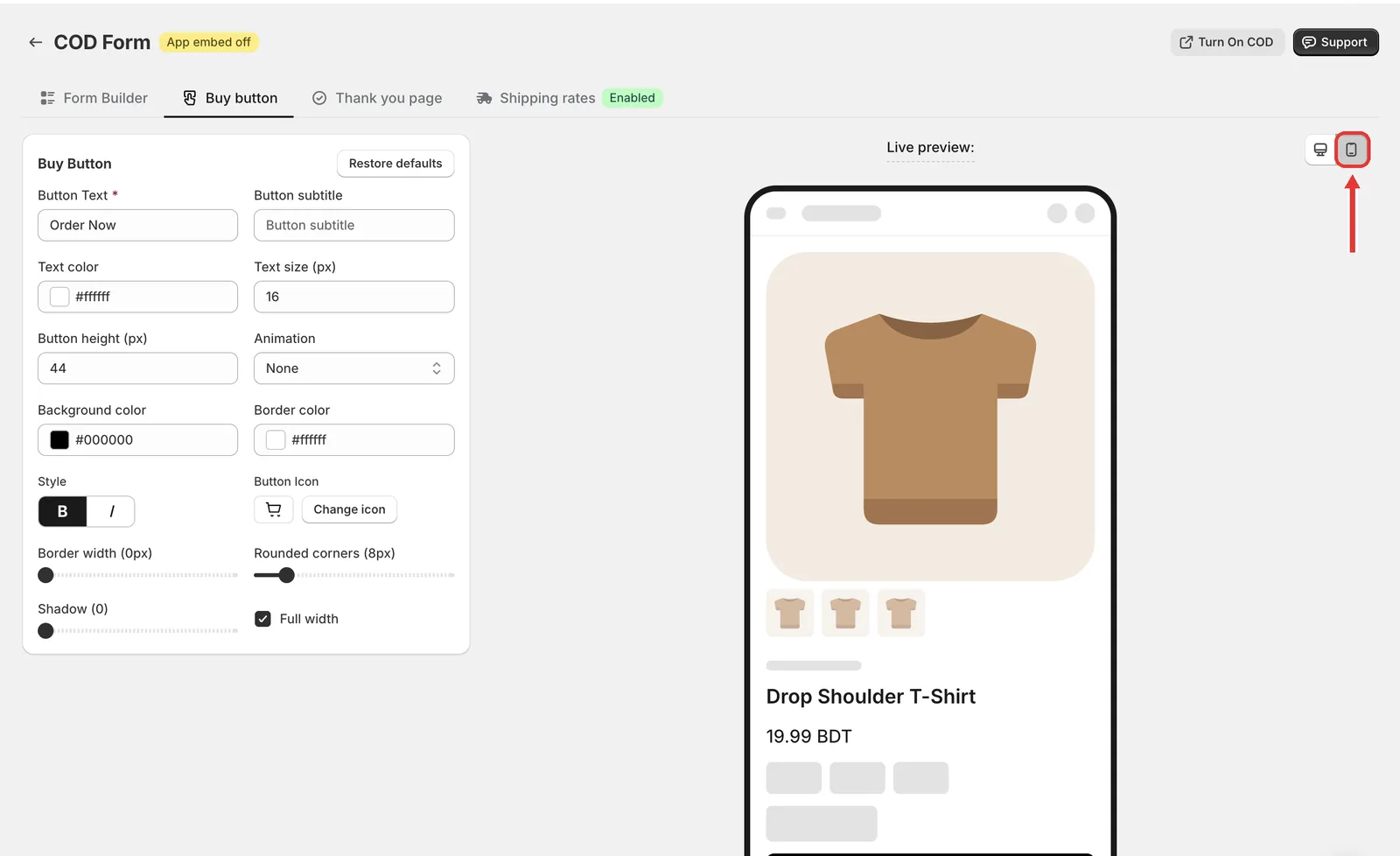
Most COD customers shop on their phones. Click the phone icon at the top right of the preview to see the button on a mobile layout.
5. Save
Save your changes. The button updates on your store straight away.
Want to start over? Restore defaults brings back the original button.
The button only shows on your store when the app embed is on. If the title shows App embed off, click Turn On COD. See Form builder.