
Bahok
Connect Bahok to book parcels from your Shopify orders and get delivery updates back automatically. You copy your merchant credentials from Bahok into the app, then point Bahok’s webhook at the app.
Before you start
You need an active Bahok Courier merchant account. Keep two browser tabs open: the Bahok merchant panel and Settings → Couriers → Bahok in the app.
1. Log in to Bahok
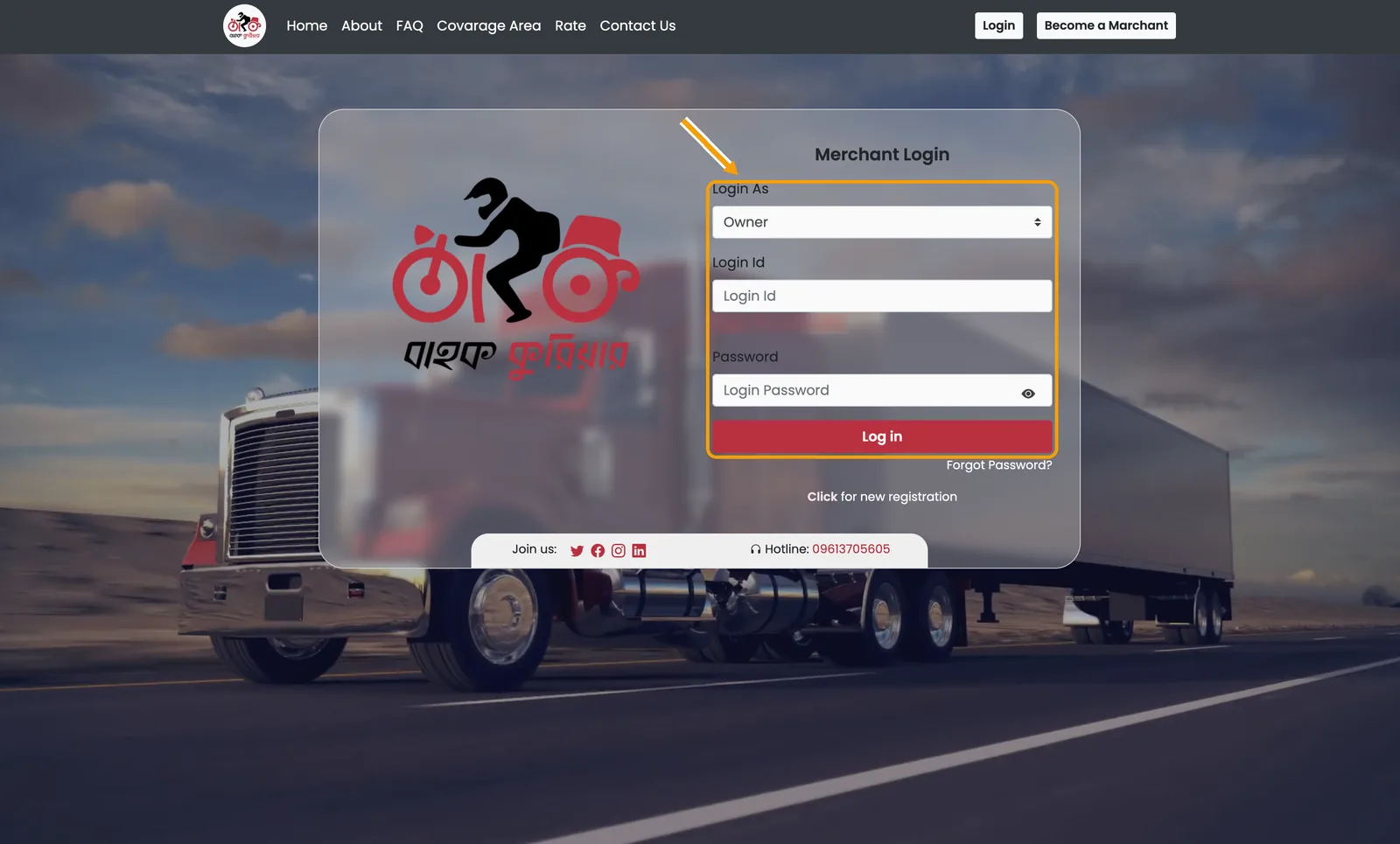
Go to merchant.bahokcourier.com. Keep Login As set to Owner, enter your Login Id and Password, and click Log in.
2. Open Developer API
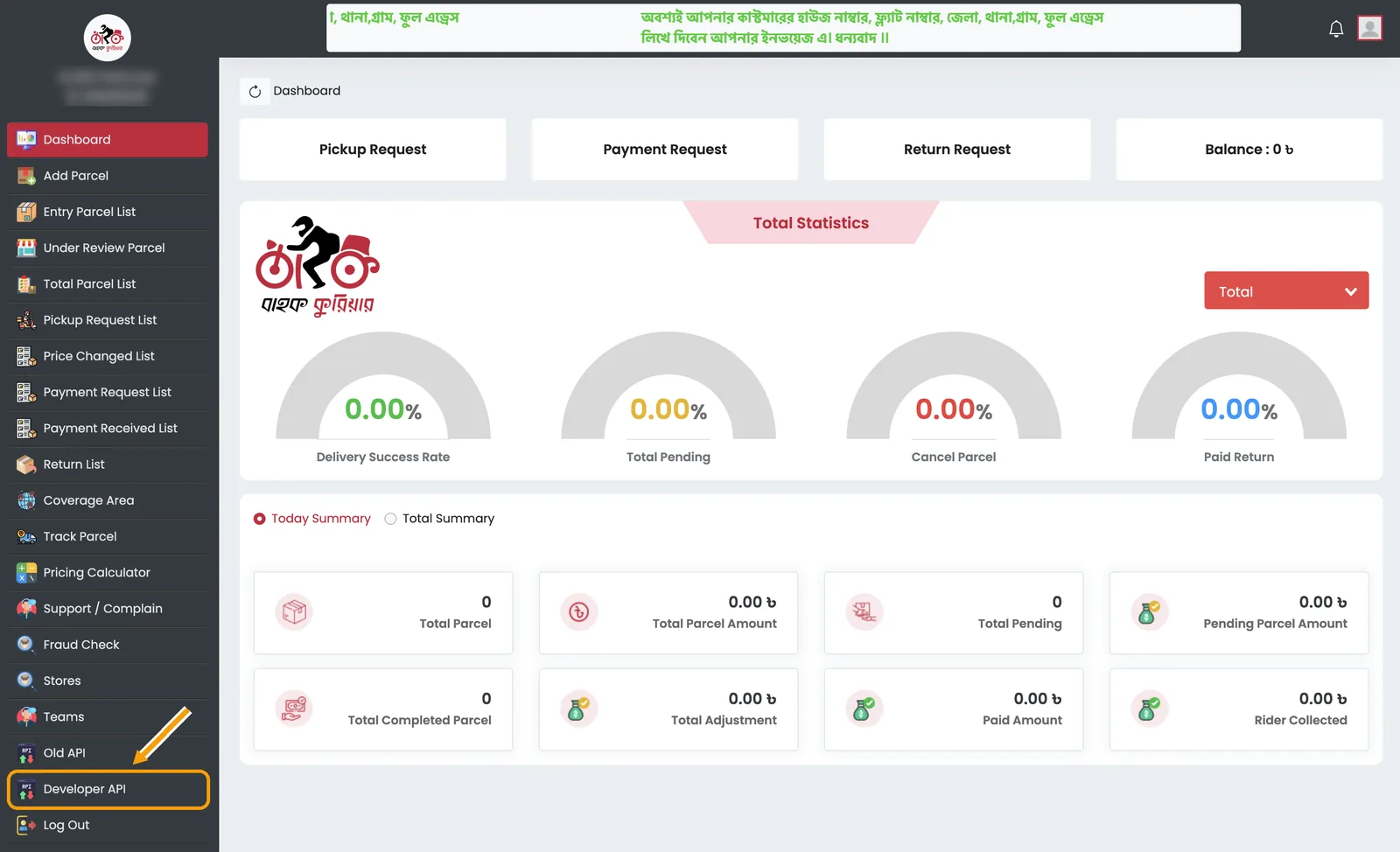
In the left sidebar, click Developer API. It’s near the bottom, above Log Out. Don’t use Old API.
Note your merchant ID too: it’s under your shop name at the top of the sidebar, for example BHKM1234. You need it in step 4.
3. Copy your Client ID and Client Secret
Under Merchant Credentials, copy the Client ID and the Client Secret.
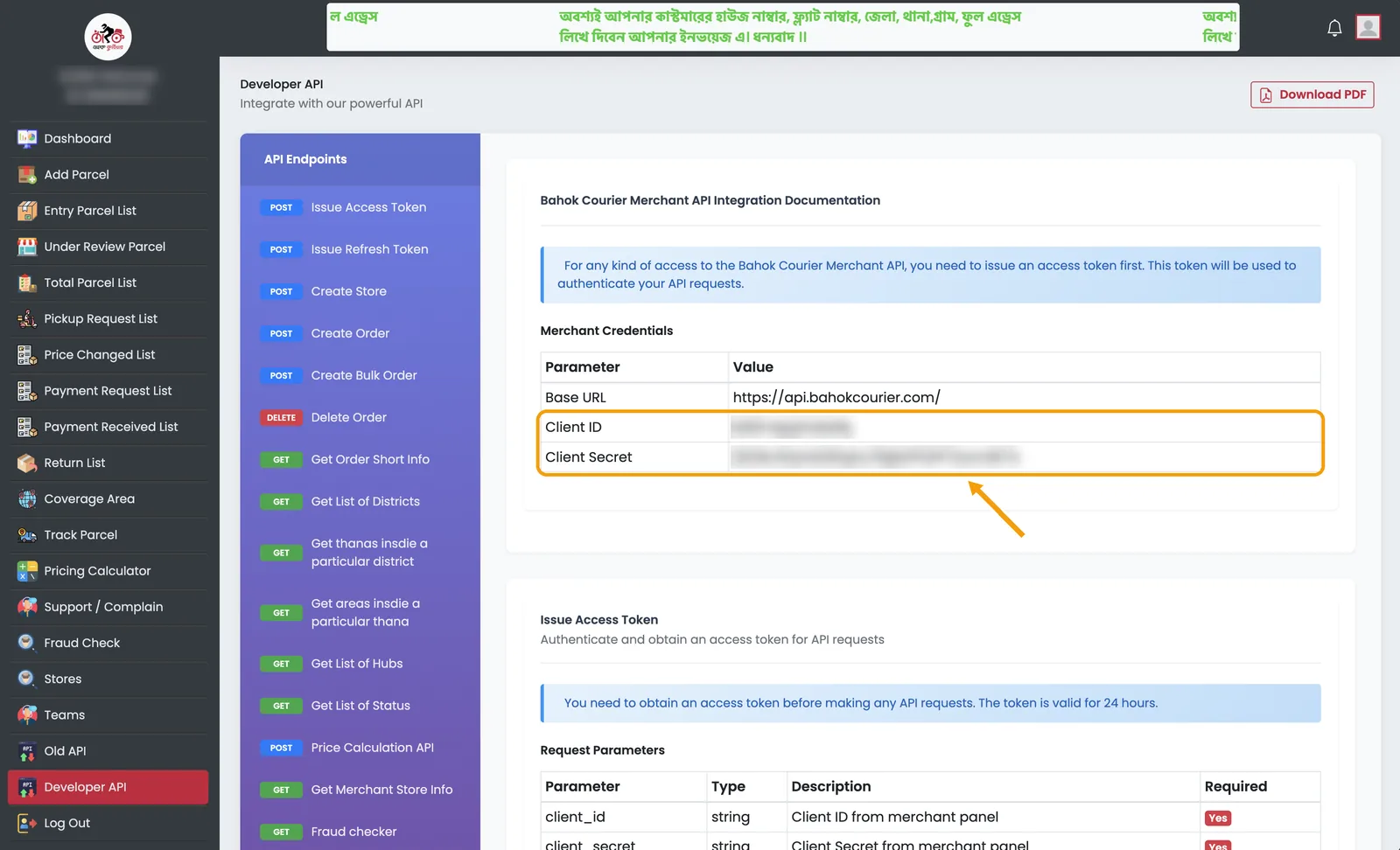
Keep these private. Anyone with them can book parcels on your account.
4. Fill in the app’s Bahok settings
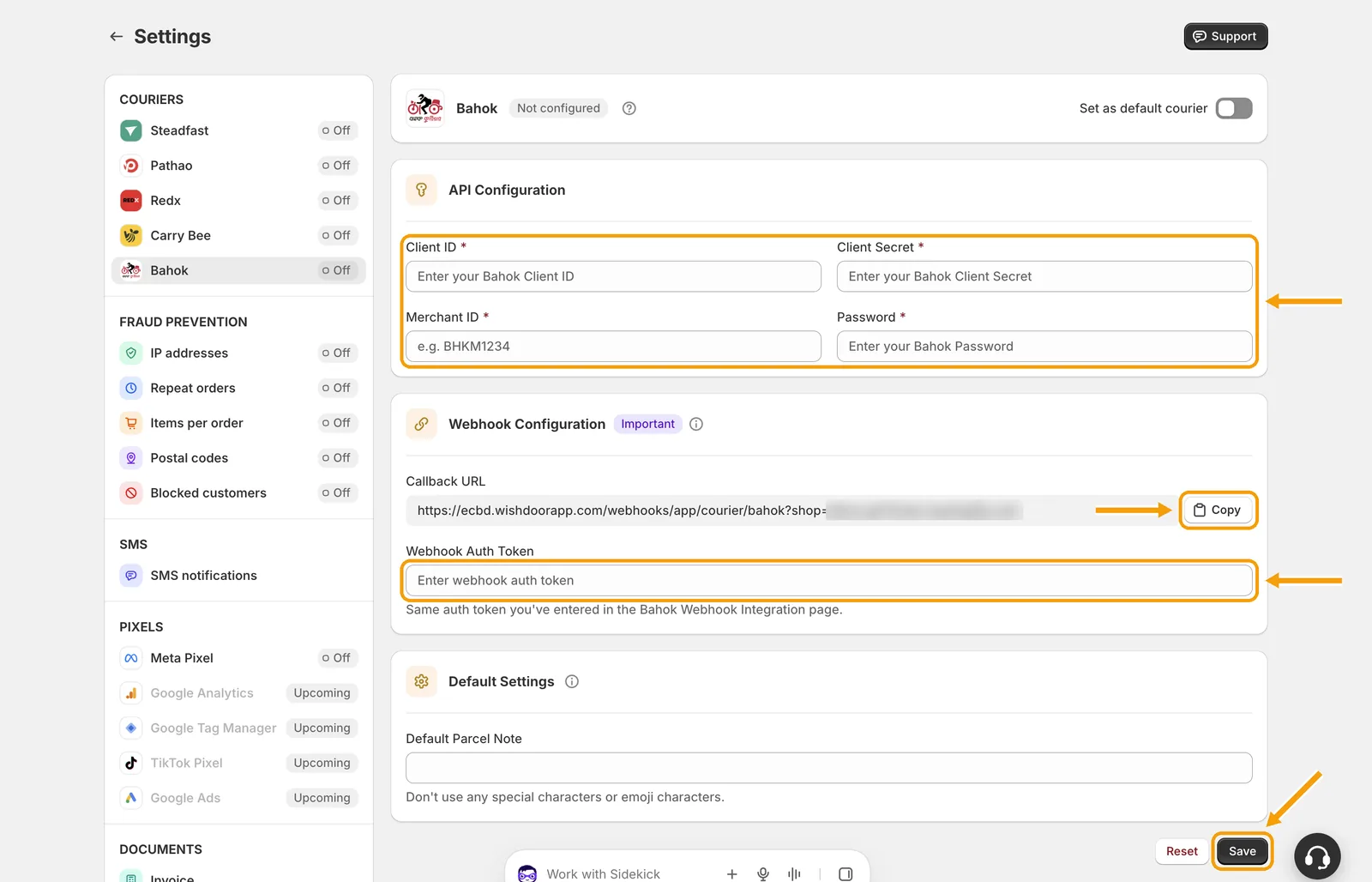
In the app, go to Settings → Couriers → Bahok and fill in:
| Field | What to enter |
|---|---|
| Client ID | The Client ID you copied |
| Client Secret | The Client Secret you copied |
| Merchant ID | Your merchant ID from the sidebar, for example BHKM1234 |
| Password | The password you use to log in to Bahok |
Then:
- In Webhook Auth Token, type a token of your choice, for example a long random password. Copy it; you need it in step 5.
- Click Copy next to the Callback URL.
- Optionally add a Default Parcel Note. Don’t use special characters or emoji.
- Click Save.
5. Set up the webhook in Bahok
The webhook lets Bahok send delivery updates, such as delivered or returned, back to the app.
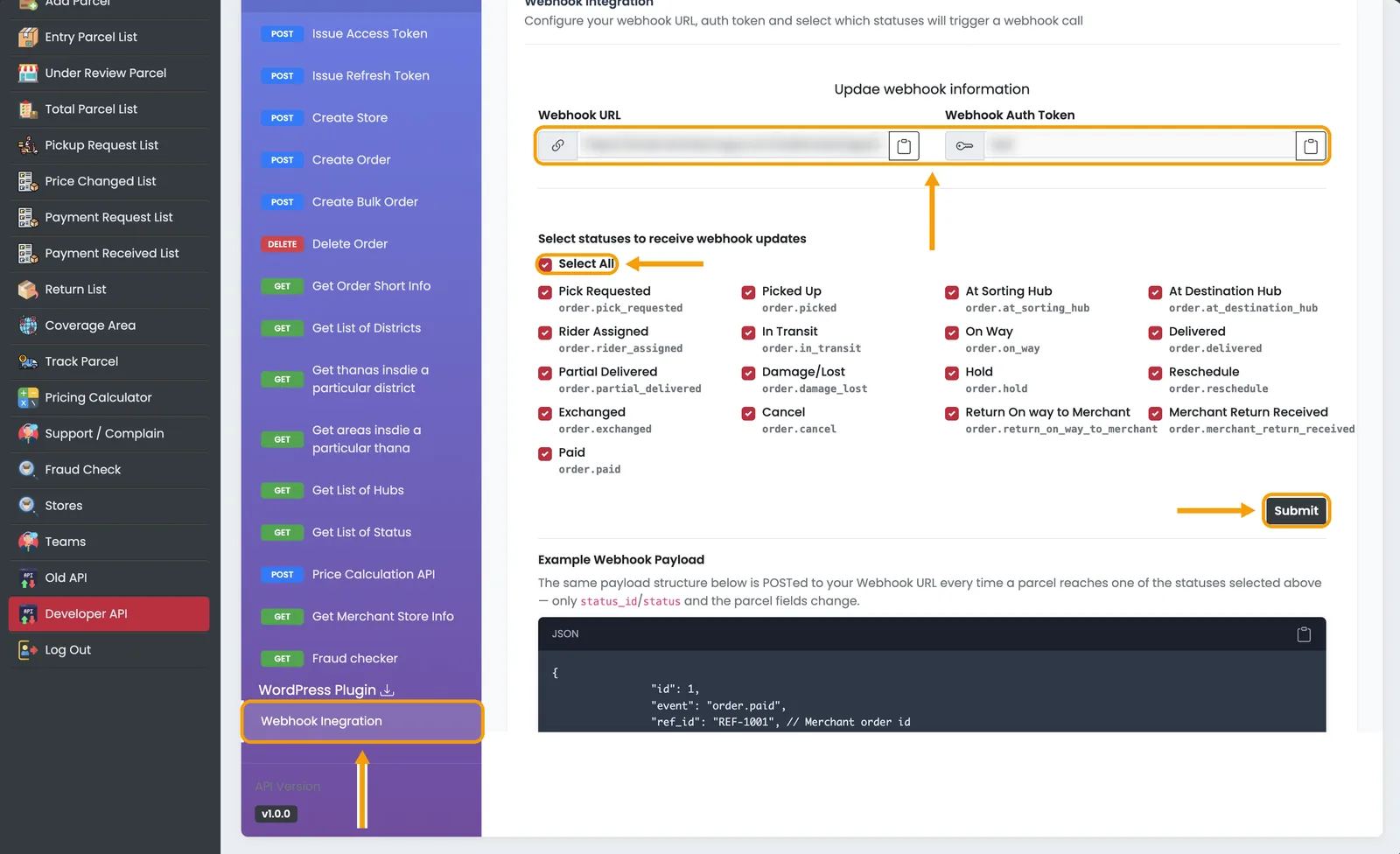
- On Bahok’s Developer API page, click Webhook Ingration at the bottom of the purple API Endpoints list.
- Paste the app’s Callback URL into Webhook URL.
- Paste the same token you set in the app into Webhook Auth Token.
- Under Select statuses to receive webhook updates, tick Select All.
- Click Submit.
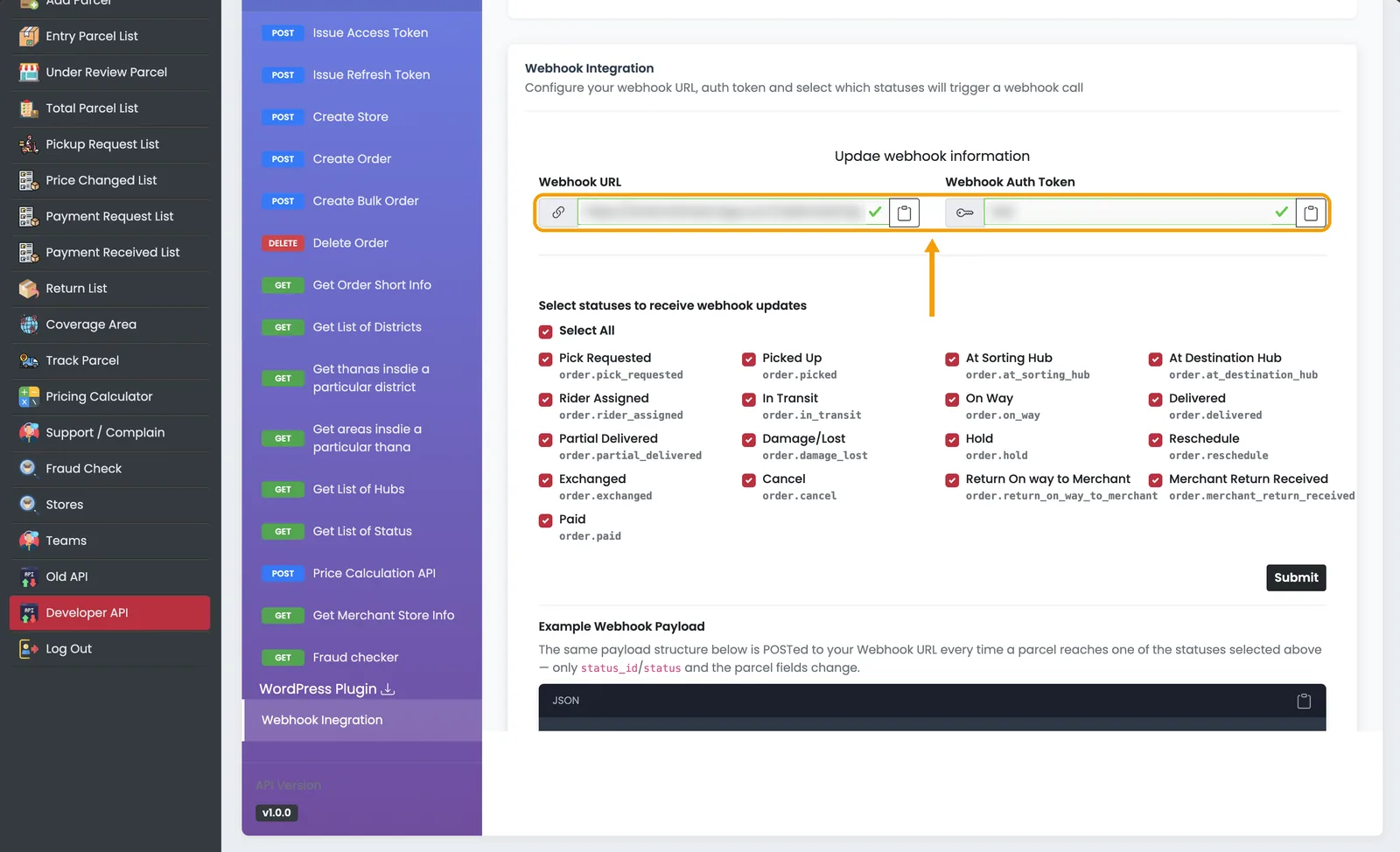
Once saved, both fields show a green check.
Turn on Set as default courier in the app if you want Bahok picked first when you assign orders.
Troubleshooting
| Problem | Fix |
|---|---|
| Saving fails | Check the Merchant ID matches the one in Bahok’s sidebar, and the Password is your Bahok login password. Copy the Client ID and Secret again. |
| Can’t log in to Bahok | Make sure Login As is set to Owner. Team members can’t open Developer API. |
| Orders don’t update after delivery | The Webhook URL in Bahok must match the app’s Callback URL exactly, and both Webhook Auth Token fields must match. |
| Parcel note rejected | Remove special characters and emoji from the Default Parcel Note. |
Next: assign your first order.