
Get support
Stuck? Message the Wishdoor team without leaving the app. Every message becomes a ticket you can follow, and we usually reply within minutes.
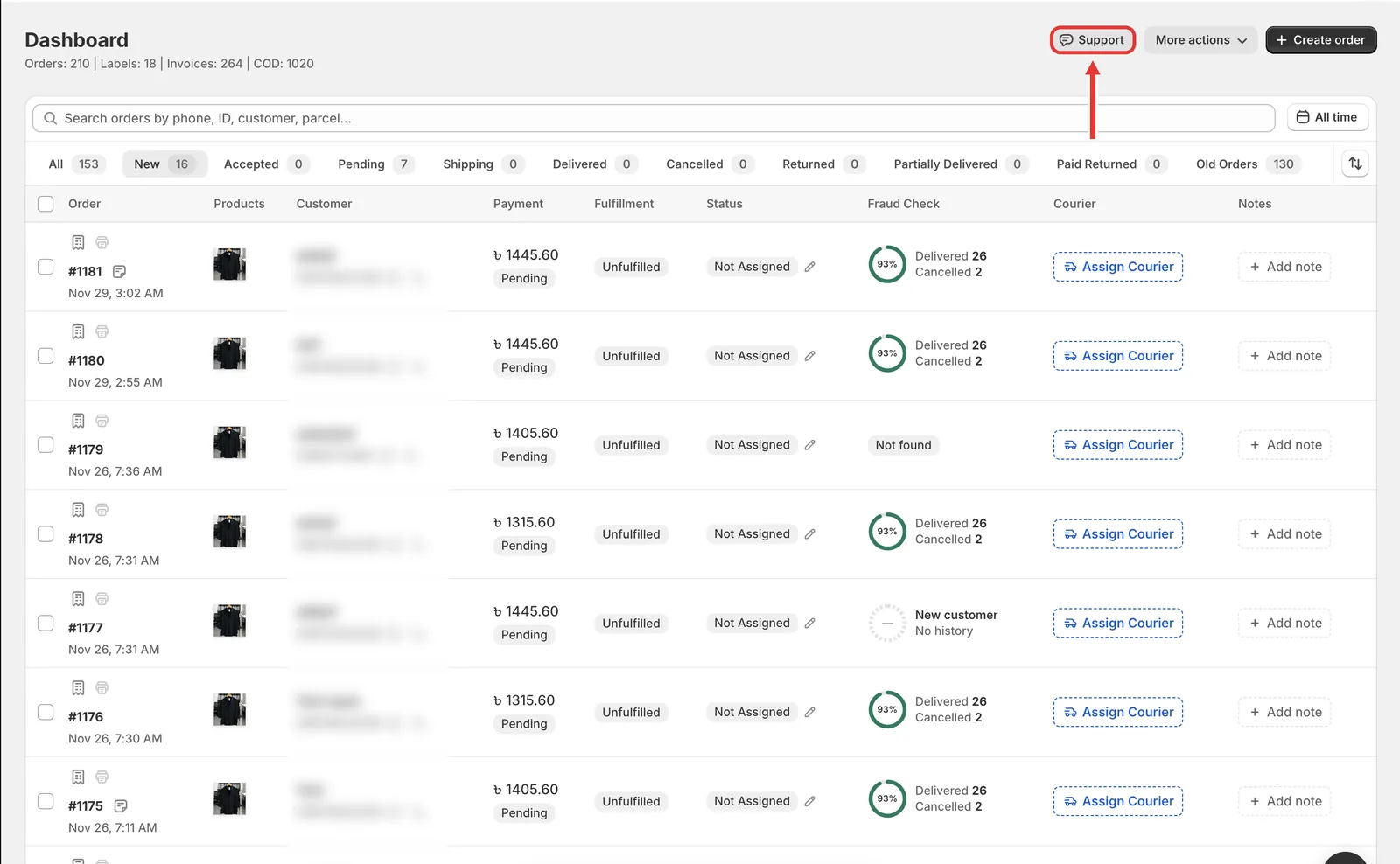
1. Open Live Support
Click Support at the top of the Dashboard. You can also click the round headset button at the bottom right of any page.
2. Start a new conversation
The Live Support panel opens on New conversation.
- Describe the problem under What’s the problem?
- Click Add attachments to add screenshots.
- Click Send message.
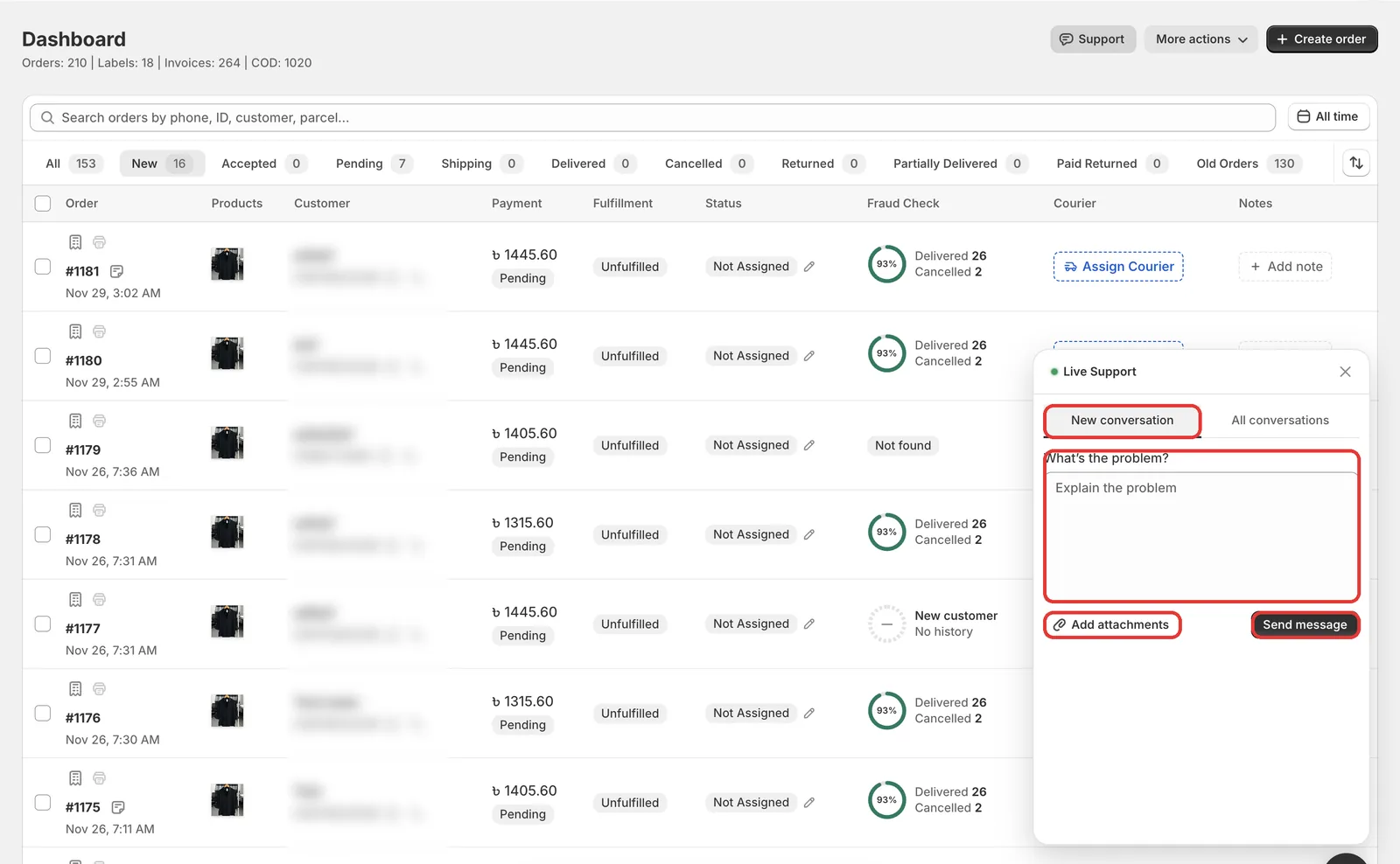
You get an automated reply straight away with your ticket number, for example ECBD-7L6J6YX, and a member of the team replies shortly after.
Get help faster. Tell us the feature where you’re facing the issue, the order number if it’s about an order, and the courier if it’s about a delivery. A screenshot helps most.
3. Follow your tickets
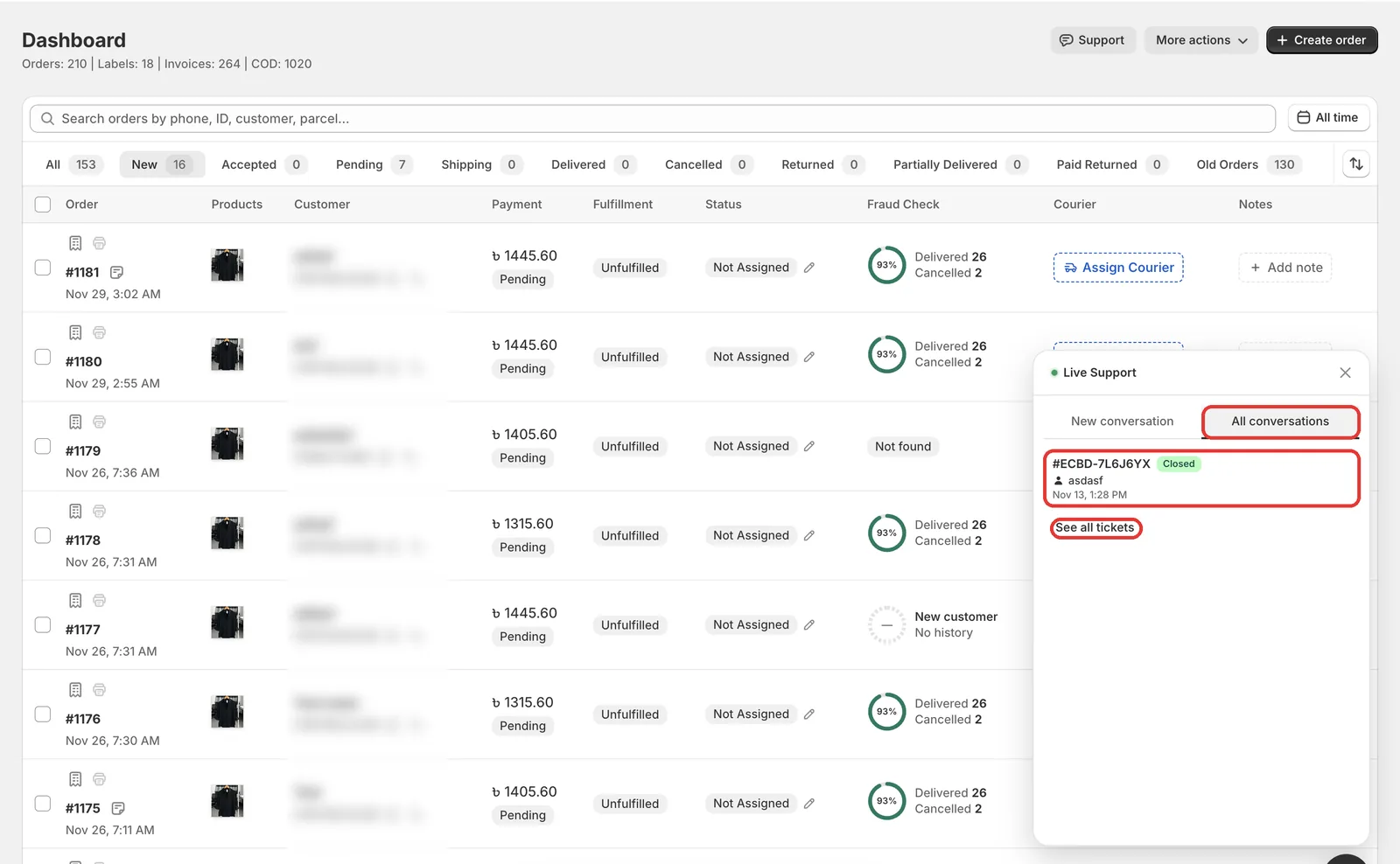
Click All conversations to see your tickets. Each shows its ticket number, its status (for example Closed) and when it was opened. Click See all tickets for the full list.
4. Reply to a ticket
Click a ticket to open it. Type in Write a reply… and send. You can attach files with the paperclip.
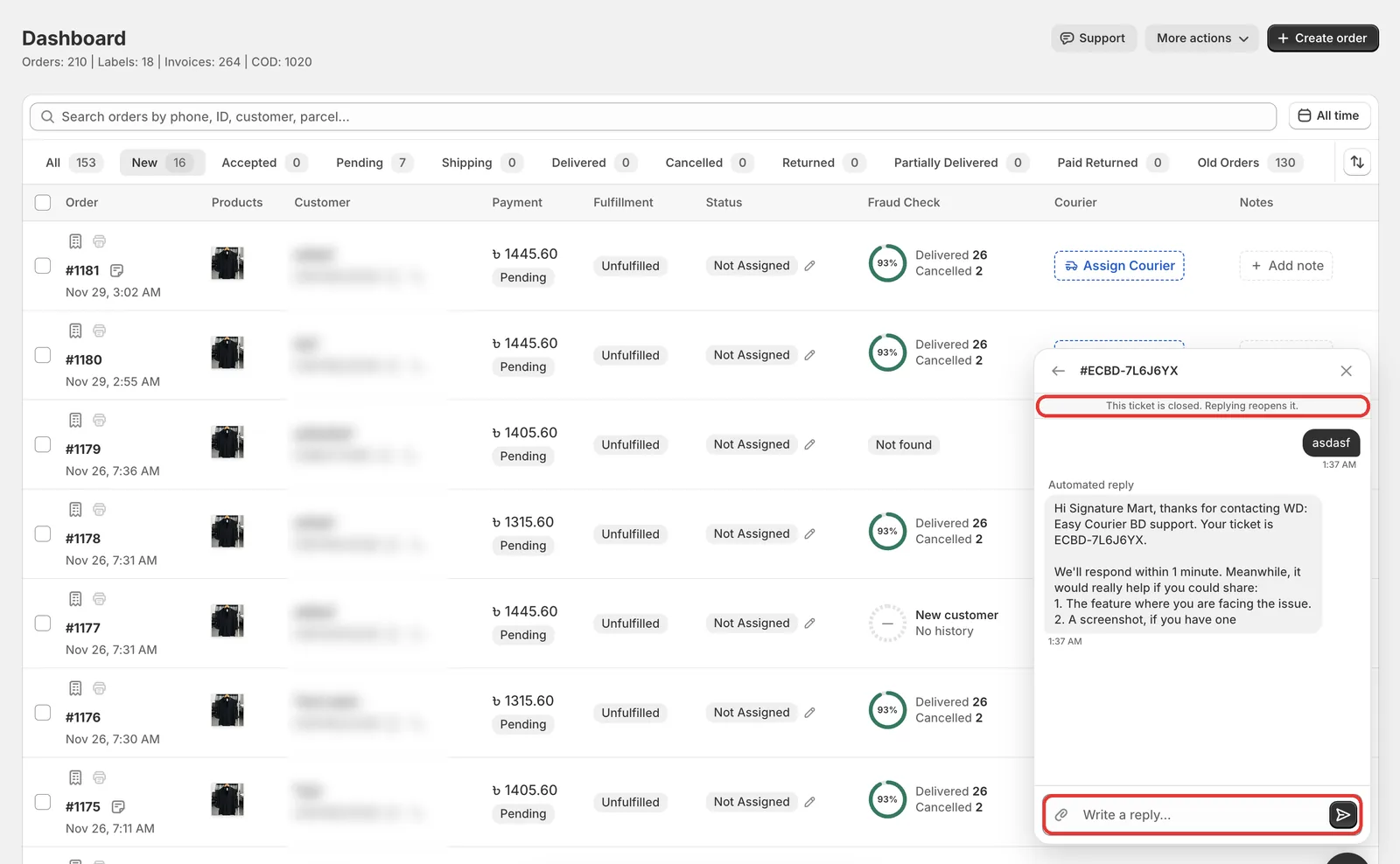
A closed ticket shows This ticket is closed. Replying reopens it. If the same problem comes back, reply on the old ticket so we have the history.