
Form builder
The COD form lets customers order with cash on delivery straight from the product page, without going through Shopify checkout. Every order lands in Shopify like a normal order. The form builder decides which fields customers fill in and how the form looks.
Open COD Form Builder in the app menu. The page has four tabs: Form Builder, Buy button, Thank you page and Shipping rates. This guide covers the first.
1. Turn on the COD form in your theme
If the title shows App embed off, the form isn’t on your store yet.
- Click Turn On COD at the top right. Shopify opens your theme editor with the app embed.
- Turn on WD: Easy COD & Courier BD and click Save.
The badge changes once the embed is on. Do this once per published theme.
2. Choose the form’s fields
The Form list on the left shows every field in order. The Live preview on the right updates as you change them.
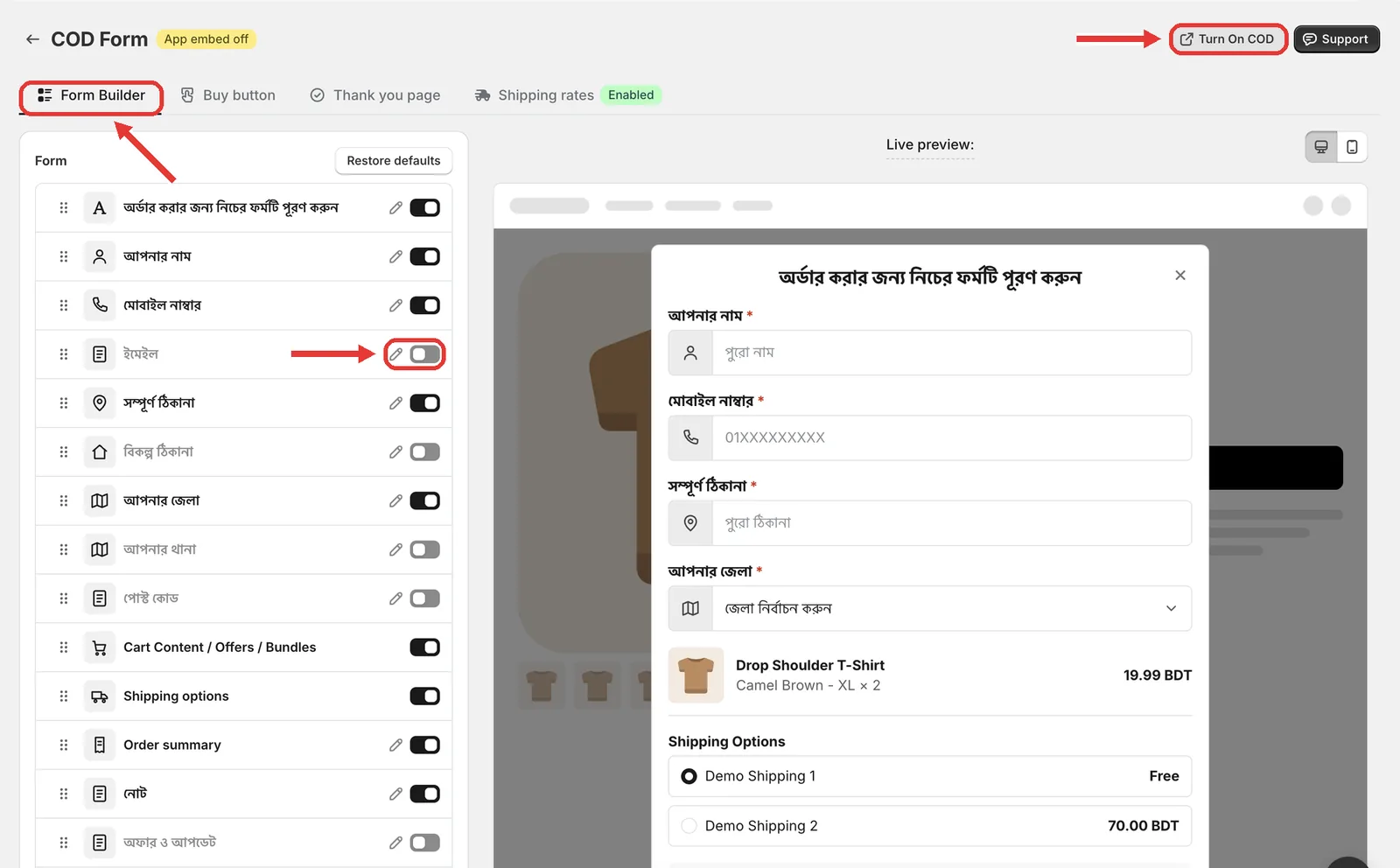
For each field:
- Switch shows or hides the field on the form.
- Pencil edits its label, placeholder and whether it’s required.
- Drag handle (the dots on the left) moves it up or down.
The default form includes:
| Field | On by default |
|---|---|
| Form title | Yes |
| Name | Yes |
| Mobile number | Yes |
| No | |
| Full address | Yes |
| Alternative address | No |
| District | Yes |
| Thana | No |
| Post code | No |
| Cart content, offers and bundles | Yes |
| Shipping options | Yes |
| Order summary | Yes |
| Note | Yes |
| Offers and updates | No |
| Confirm order button | Yes |
Made a mess? Restore defaults brings back the original fields.
3. Pick a template
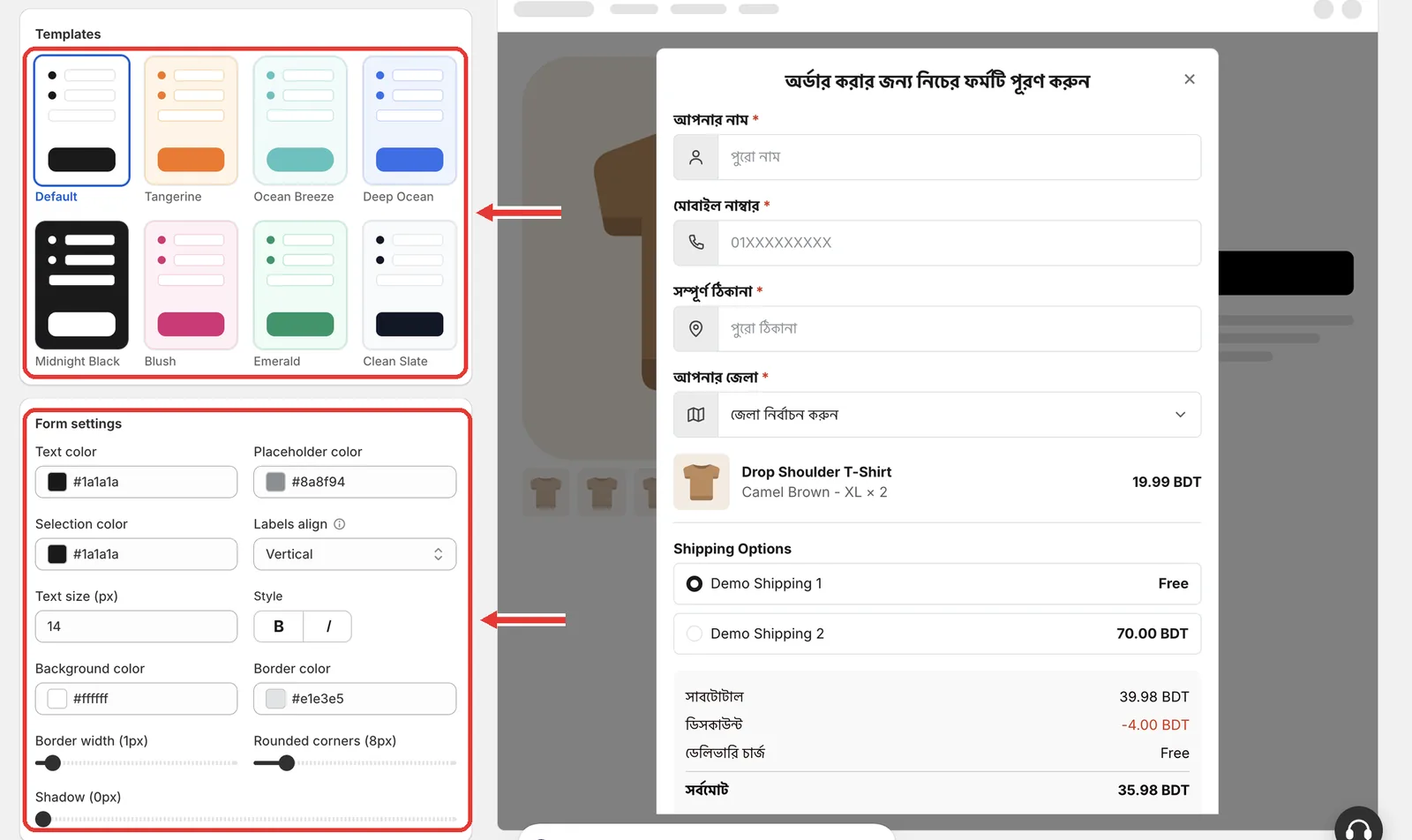
Under Templates, click a style to apply its colours: Default, Tangerine, Ocean Breeze, Deep Ocean, Midnight Black, Blush, Emerald or Clean Slate. You can still change any colour afterwards.
4. Fine-tune the style
Form settings controls the look of the whole form:
| Setting | What it changes |
|---|---|
| Text color | Labels and the text customers type |
| Placeholder color | Hint text inside empty fields |
| Selection color | Selected options, such as the chosen shipping option |
| Labels align | Labels above the fields (Vertical) or beside them |
| Text size (px) and Style | Text size, bold and italic |
| Background color and Border color | Field background and outline |
| Border width, Rounded corners and Shadow | Field outline thickness, corner radius and depth |
Use the desktop and mobile buttons above the preview to check both sizes.
5. Save
Save your changes. They go live on your store straight away.