
Analytics
Analytics shows how your store and COD form are doing: how many shoppers open the form and order, what fraud prevention blocked, where your orders stand, how SMS is performing, and your best products and customers.
Open Analytics in the app menu.
Choose a date range
Use the date button at the top right, for example All time, to pick the period. Every number on the page follows it. Click Refresh to load the latest data.
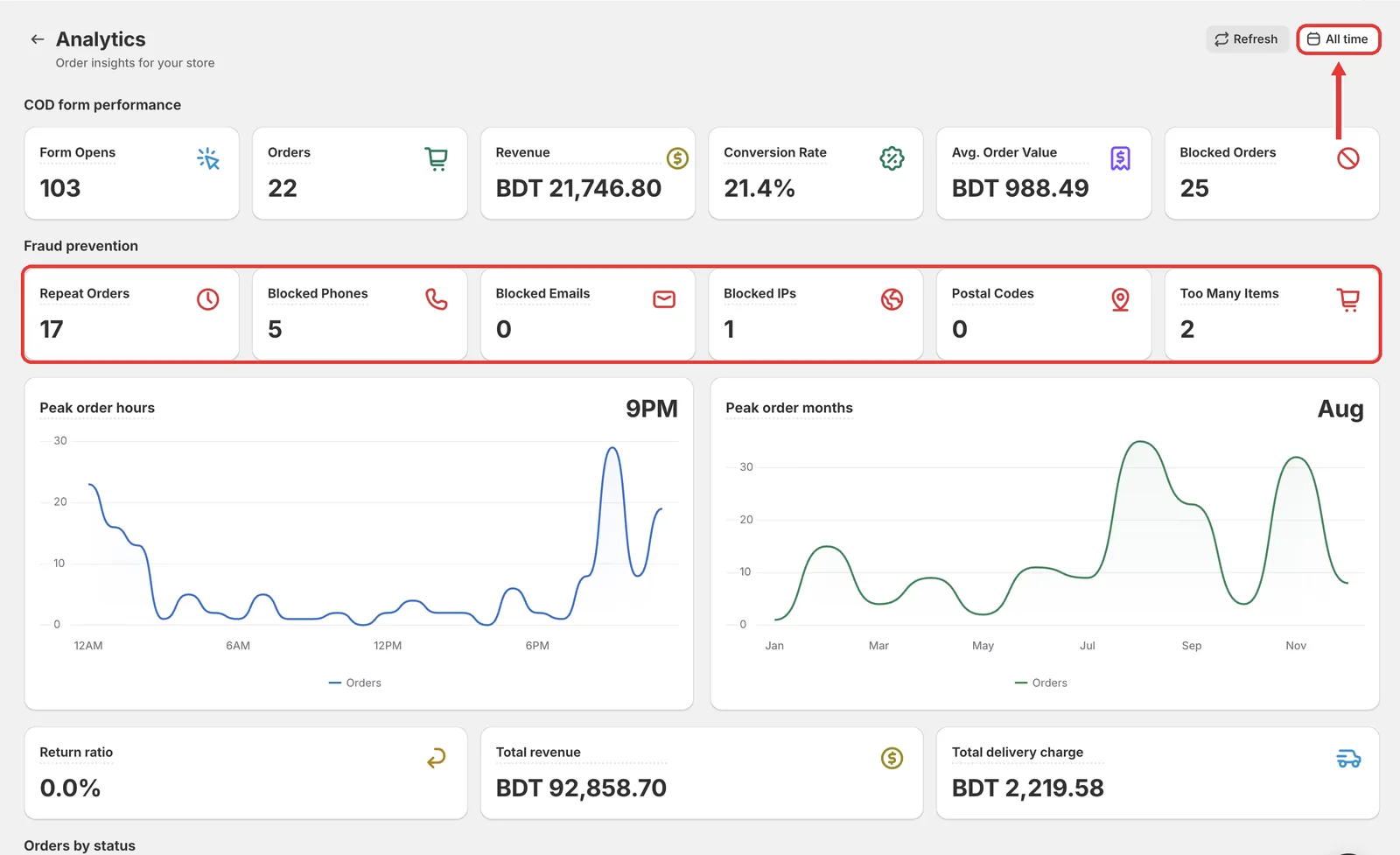
COD form performance
| Number | Meaning |
|---|---|
| Form Opens | Times shoppers opened the COD form |
| Orders | Orders placed through the form |
| Revenue | Total value of those orders |
| Conversion Rate | Orders as a share of form opens |
| Avg. Order Value | Revenue divided by orders |
| Blocked Orders | Orders stopped by fraud prevention |
A low conversion rate with many form opens can mean the form asks for too much. Try turning off optional fields in the Form builder.
Fraud prevention
How many orders each fraud prevention rule blocked: Repeat Orders, Blocked Phones, Blocked Emails, Blocked IPs, Postal Codes and Too Many Items.
Order trends
- Peak order hours: when in the day customers order most, for example 9PM. Useful for timing ads and staff.
- Peak order months: your busiest month, for example Aug.
- Return ratio: returned orders as a share of all orders.
- Total revenue: the value of all orders, not only COD form orders.
- Total delivery charge: shipping charged on orders.
Orders by status
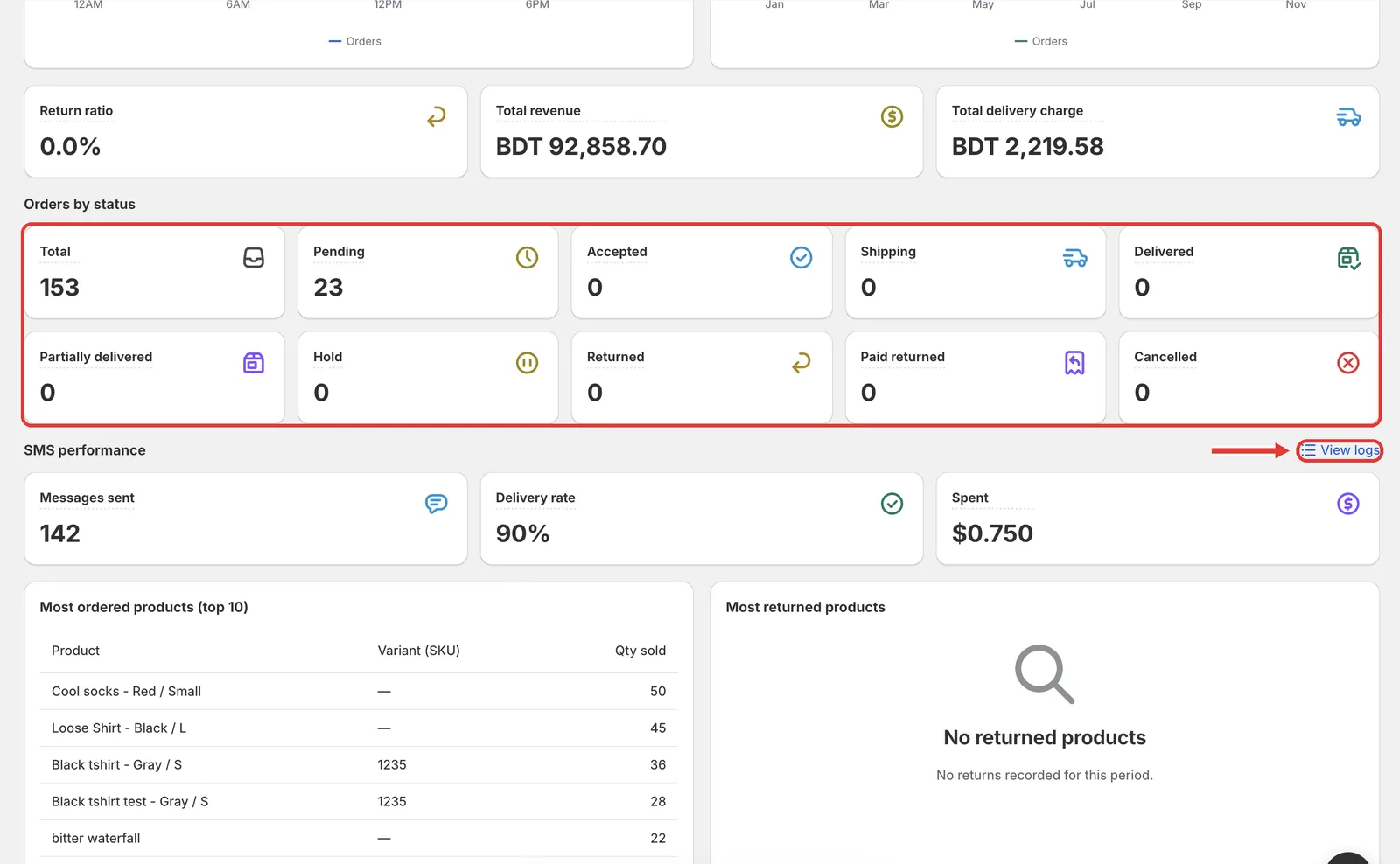
How many orders are in each status: Total, Pending, Accepted, Shipping, Delivered, Partially delivered, Hold, Returned, Paid returned and Cancelled.
SMS performance
| Number | Meaning |
|---|---|
| Messages sent | Texts sent in the period |
| Delivery rate | Texts that reached the phone |
| Spent | What those texts cost |
Click View logs to see every text. Filter by All, Sent or Failed, search with the search button, and click View on a row to read the message. Each row shows when it was sent, its type (for example Order Accepted), the number of parts, the cost, the status and, for failed texts, the reason.
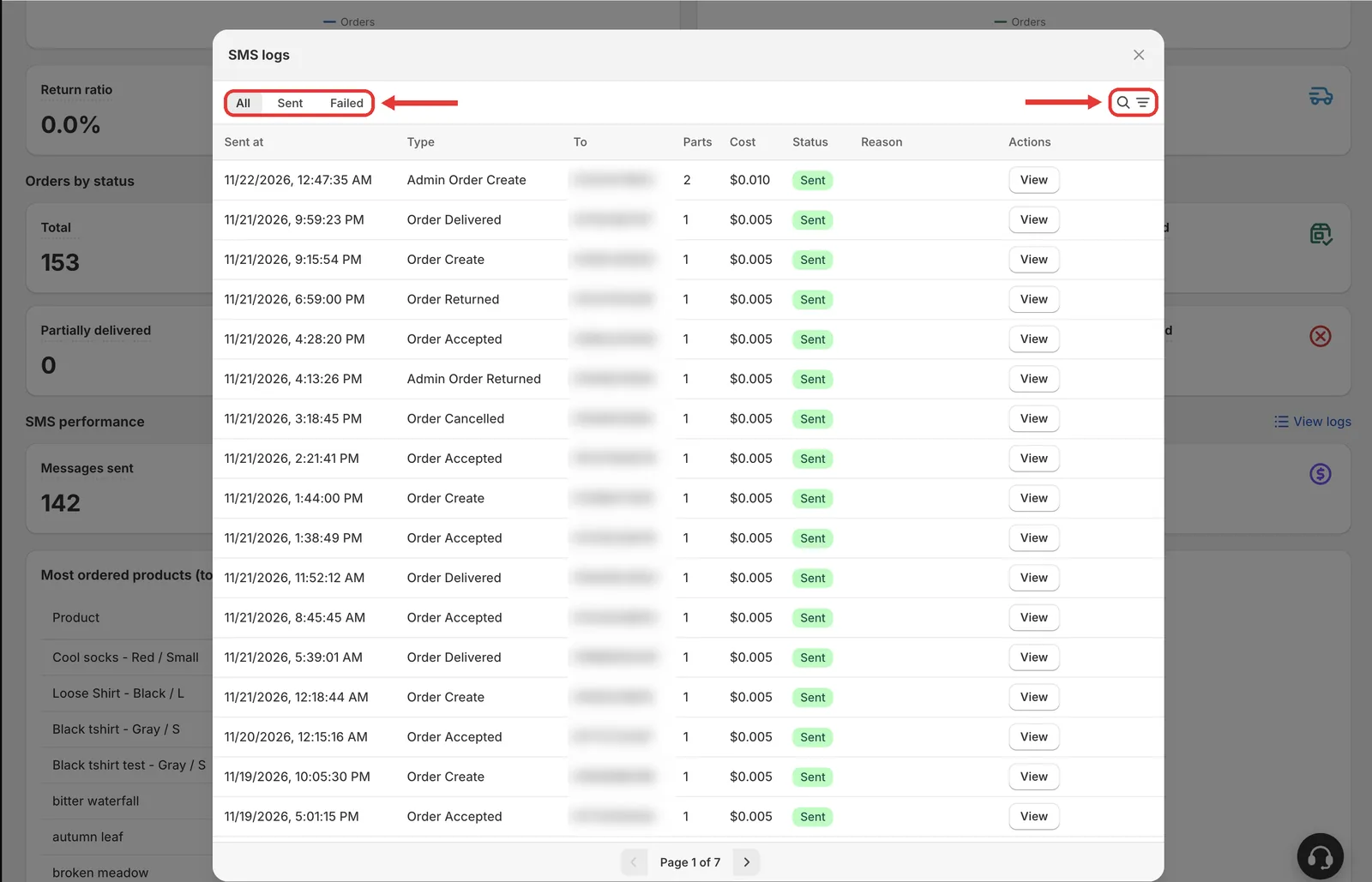
To set up which texts are sent, see SMS notifications.
Top products and customers
- Most ordered products (top 10): product, variant (SKU) and quantity sold.
- Most returned products: the products customers send back most. Check these for quality or description problems.
- Top customers by value and Top customers by orders: your best customers, with phone, total value and order count.
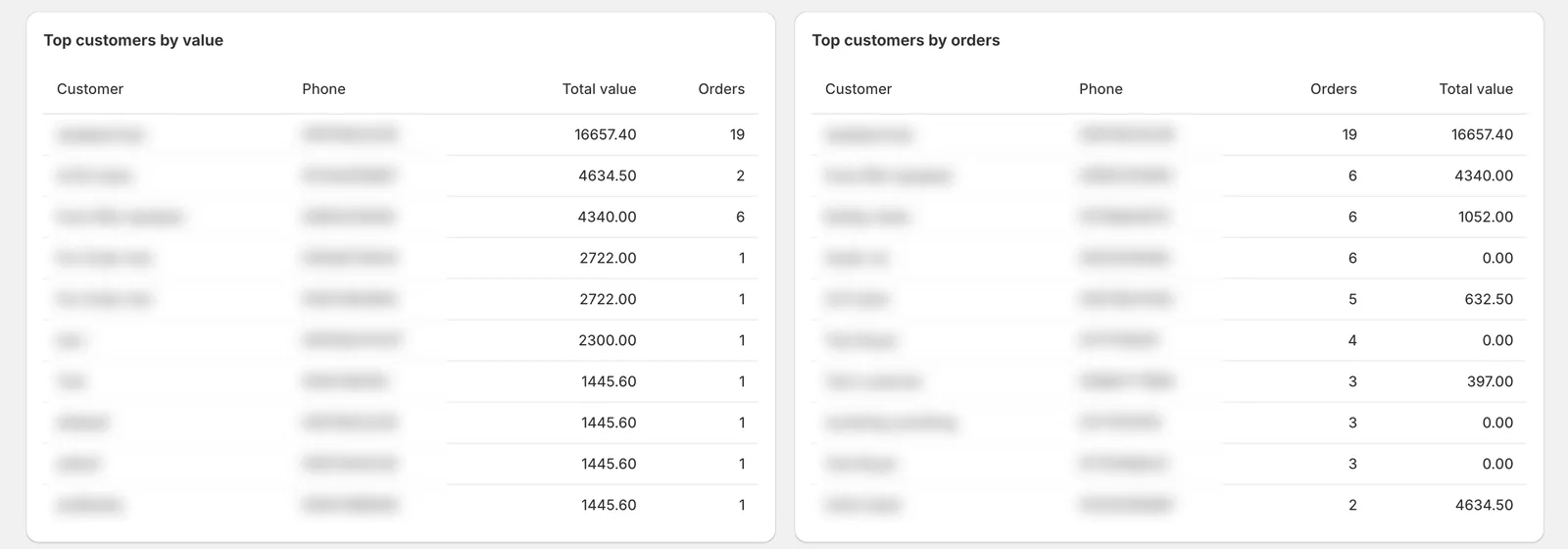
Analytics is available on selected plans.