
Thank you page
After a customer submits the COD form, the app shows them a confirmation. You decide what that looks like.
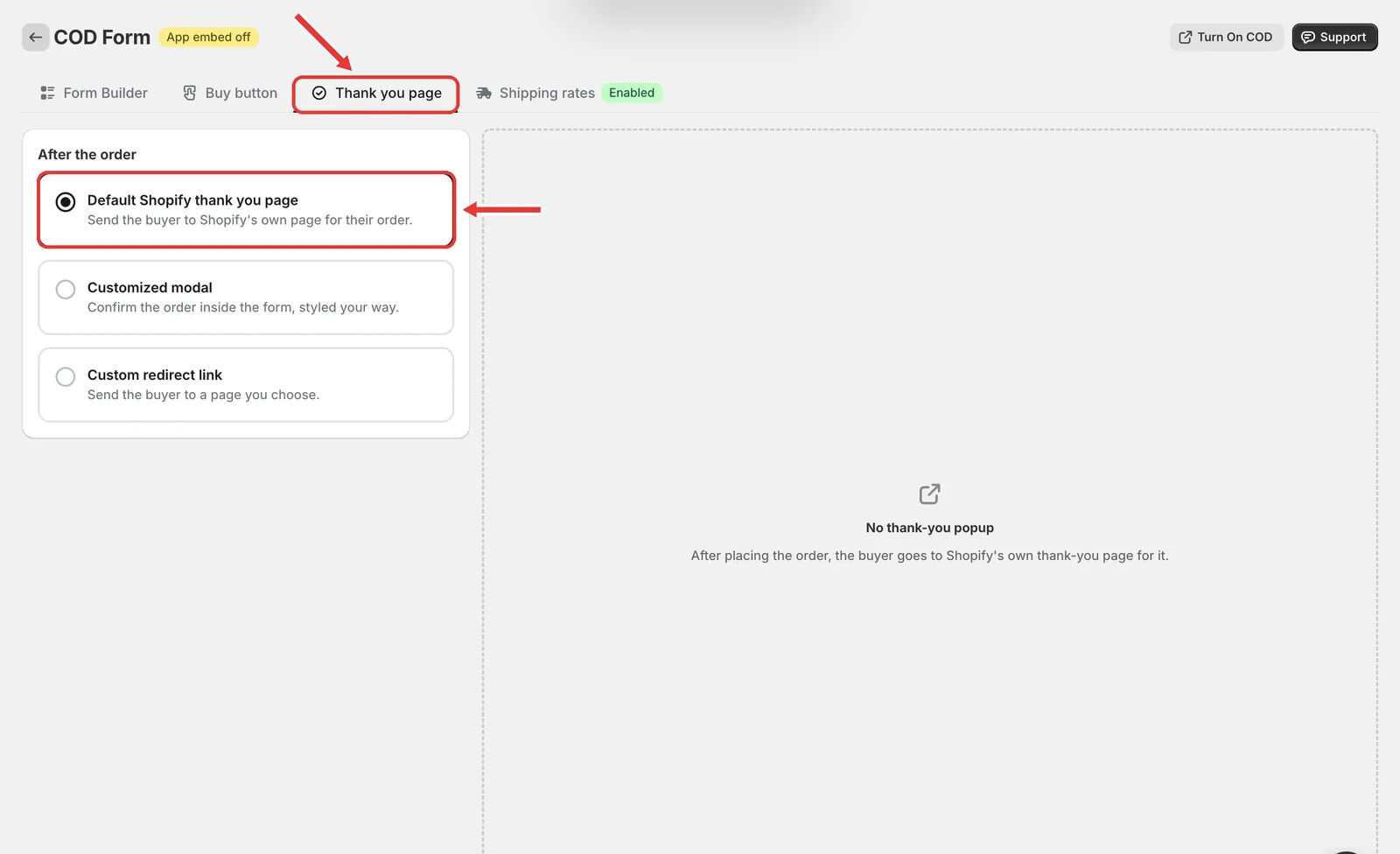
Open COD Form Builder in the app menu and click the Thank you page tab. Under After the order, pick one of three options.
| Option | What the customer sees |
|---|---|
| Default Shopify thank you page | Shopify’s own order page |
| Customized modal | A confirmation popup inside the form, styled your way |
| Custom redirect link | Any page you choose, for example an upsell or a WhatsApp group |
Option 1: Default Shopify thank you page
Select Default Shopify thank you page. There’s nothing else to set up: after ordering, the customer goes to Shopify’s own thank-you page for their order.
Option 2: Customized modal
Select Customized modal to keep the customer on your product page and confirm the order in a popup. The Live preview shows the popup with a sample order.
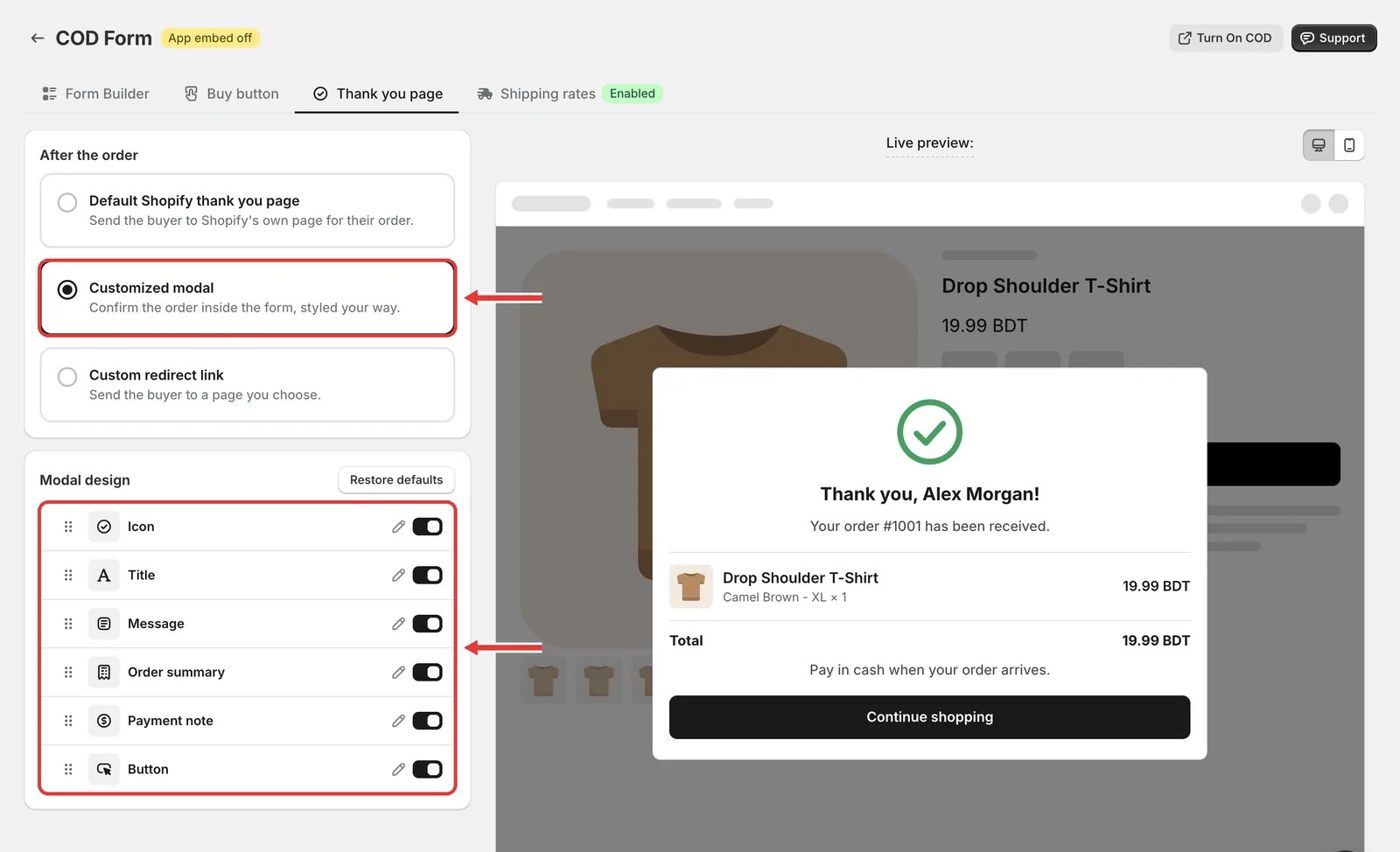
Modal design lists the popup’s parts, top to bottom:
| Part | What it shows |
|---|---|
| Icon | A check mark at the top |
| Title | For example “Thank you, Alex Morgan!” |
| Message | For example “Your order #1001 has been received.” |
| Order summary | The products, quantities and total |
| Payment note | For example “Pay in cash when your order arrives.” |
| Button | For example “Continue shopping”, which closes the popup |
For each part:
- Switch shows or hides it.
- Pencil edits its text and style.
- Drag handle (the dots on the left) moves it up or down.
Restore defaults brings back the original popup.
Check it on mobile
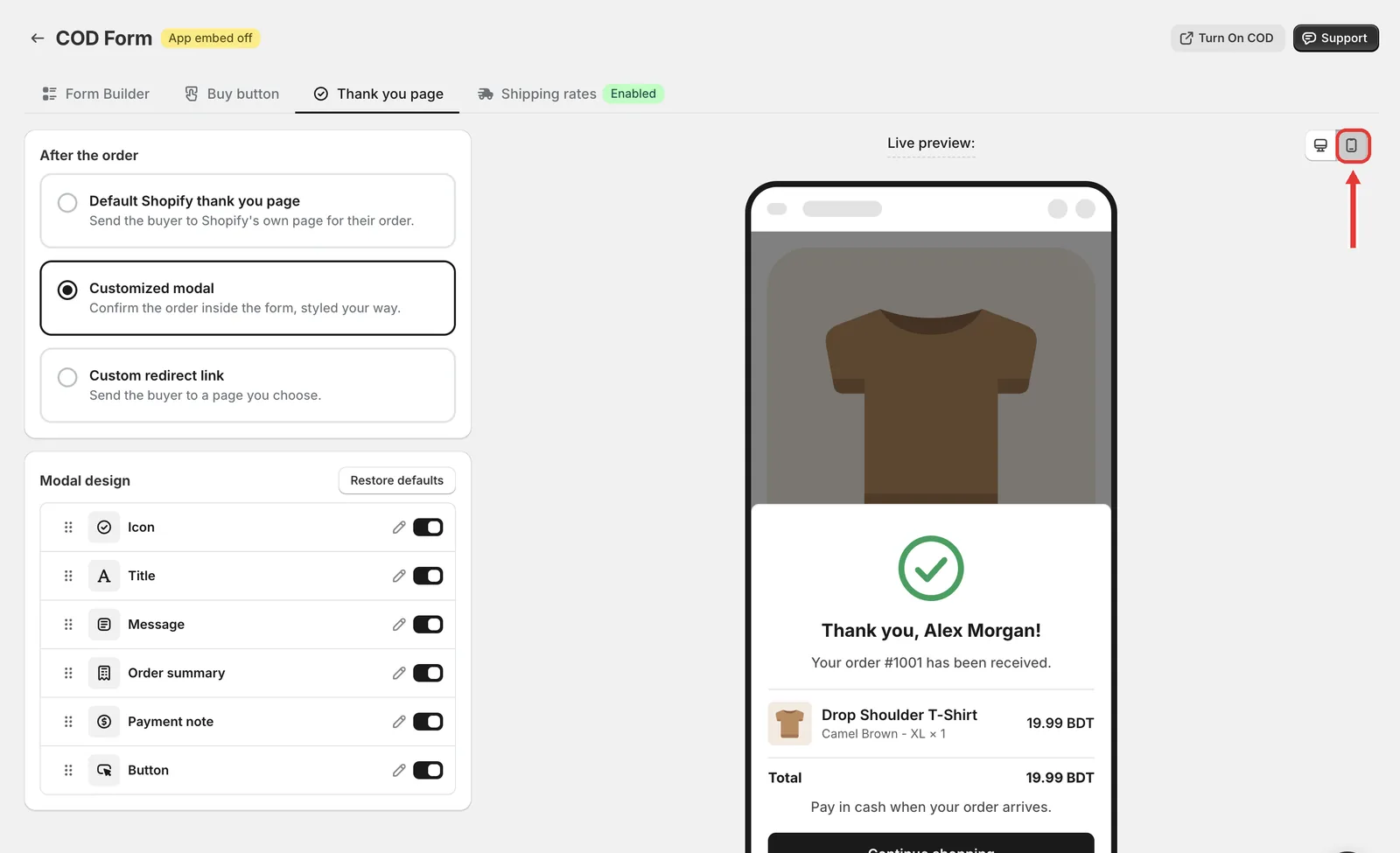
Click the phone icon above the preview to see the popup on a phone.
Option 3: Custom redirect link
Select Custom redirect link to send the customer to any page right after they order.
- Enter the page address in Redirect link, for example
https://your-store.com/pages/thank-you. - Optionally add order details to the link. Open Variables and click one to insert it where your cursor is. Each variable is replaced with that order’s own value.
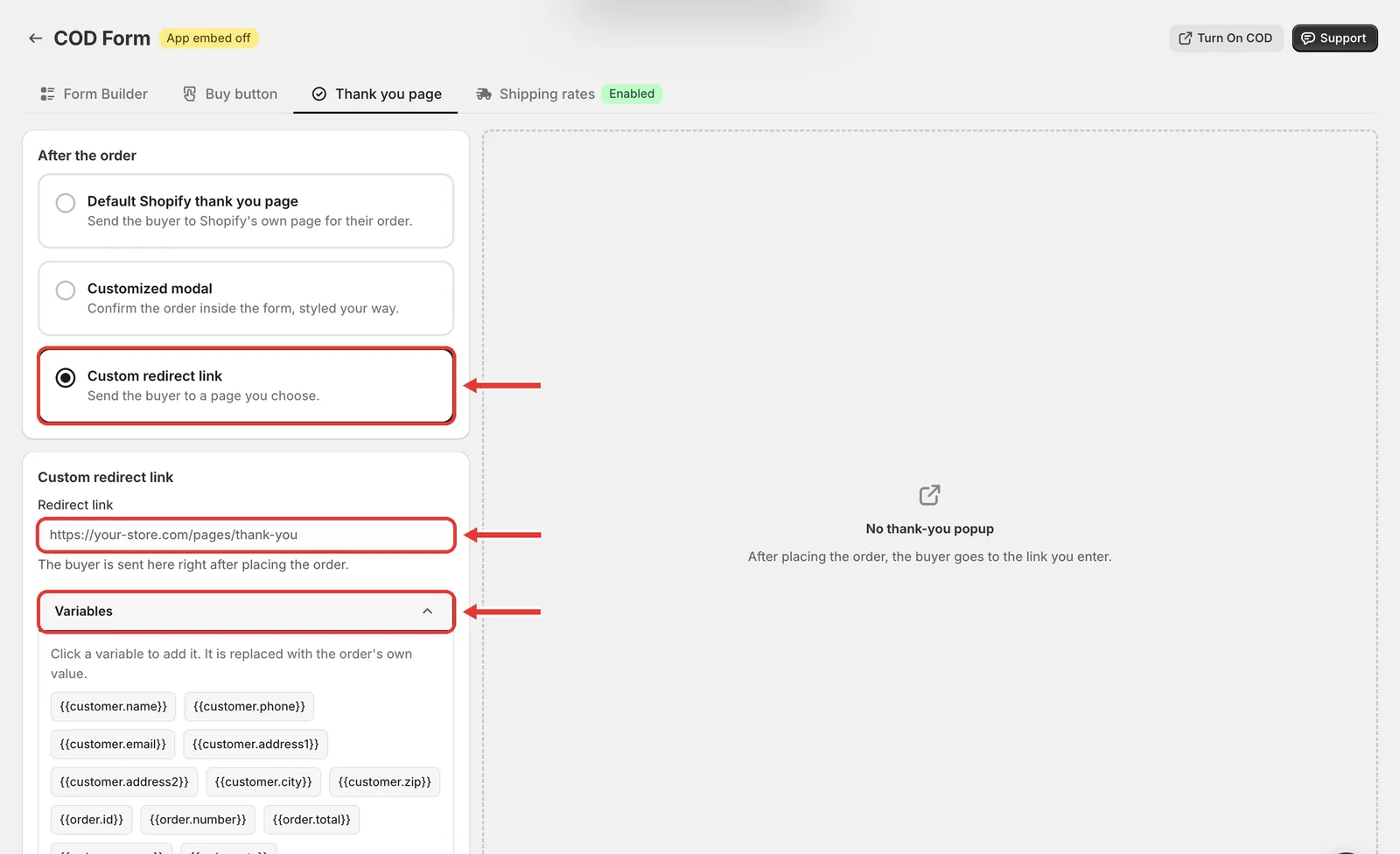
Available variables include:
| Customer | Order |
|---|---|
{{customer.name}} |
{{order.id}} |
{{customer.phone}} |
{{order.number}} |
{{customer.email}} |
{{order.total}} |
{{customer.address1}} |
{{order.currency}} |
{{customer.address2}} |
{{order.note}} |
{{customer.city}} |
|
{{customer.zip}} |
The Variables panel shows the full list.
For example, https://your-store.com/pages/thank-you?order={{order.number}}&total={{order.total}} sends the customer to your page with their order number and total in the address.
Save
Save your changes. They apply to the next order straight away.
Next steps
- Set up shipping rates
- Connect a Meta pixel to track COD orders as purchases