
Shipping rates
Shipping rates add a delivery charge to orders placed through the COD form. The customer picks a rate in the form, and its price is added to the order total. A common setup is one rate for inside Dhaka and another for the rest of the country.
Open COD Form Builder in the app menu and click the Shipping rates tab.
1. Turn on shipping rates
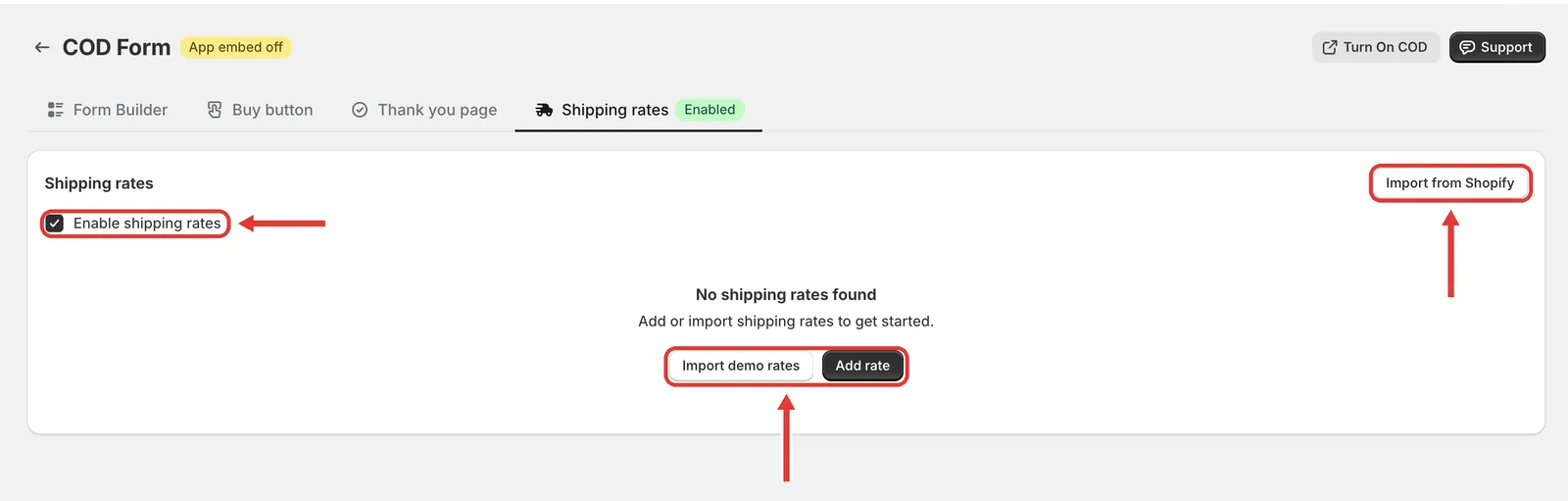
Tick Enable shipping rates. The tab shows an Enabled badge while rates are live, so you can see it from any tab.
If you have no rates yet, you have three ways to start:
| Button | What it does |
|---|---|
| Add rate | Create a rate from scratch |
| Import demo rates | Add sample rates you can edit, a quick way to see how rates work |
| Import from Shopify | Copy the shipping rates you already set up in Shopify |
2. Add a rate
Click Add rate. Fill in:
| Field | What to enter |
|---|---|
| Rate name | What customers see in the form, for example “ঢাকা সিটির ভিতরে” (inside Dhaka city) |
| Rate description | Optional subtitle, for example “2-3 days” |
| Price | The delivery charge in BDT. Enter 0 for free delivery: the form then shows Free. |
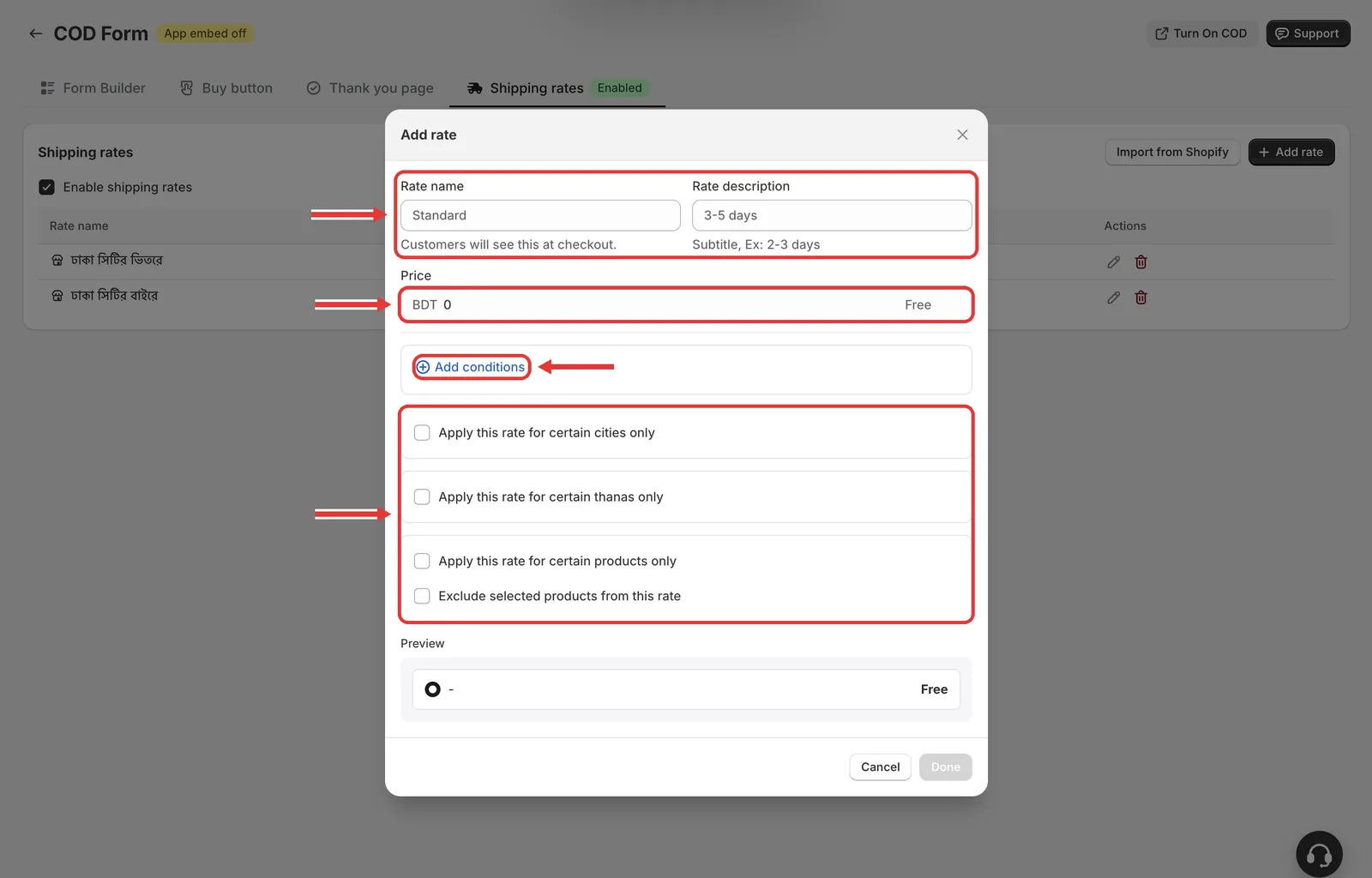
The Preview at the bottom shows the rate as customers will see it.
3. Choose where the rate applies
Without conditions, a rate is offered on every order. Use conditions to offer it only in some cases:
- Apply this rate for certain cities only: the rate shows only when the customer picks one of these districts.
- Apply this rate for certain thanas only: the same, by thana.
- Apply this rate for certain products only: the rate shows only for these products.
- Exclude selected products from this rate: the rate never shows for these products.
Add conditions adds more rules, such as order value.
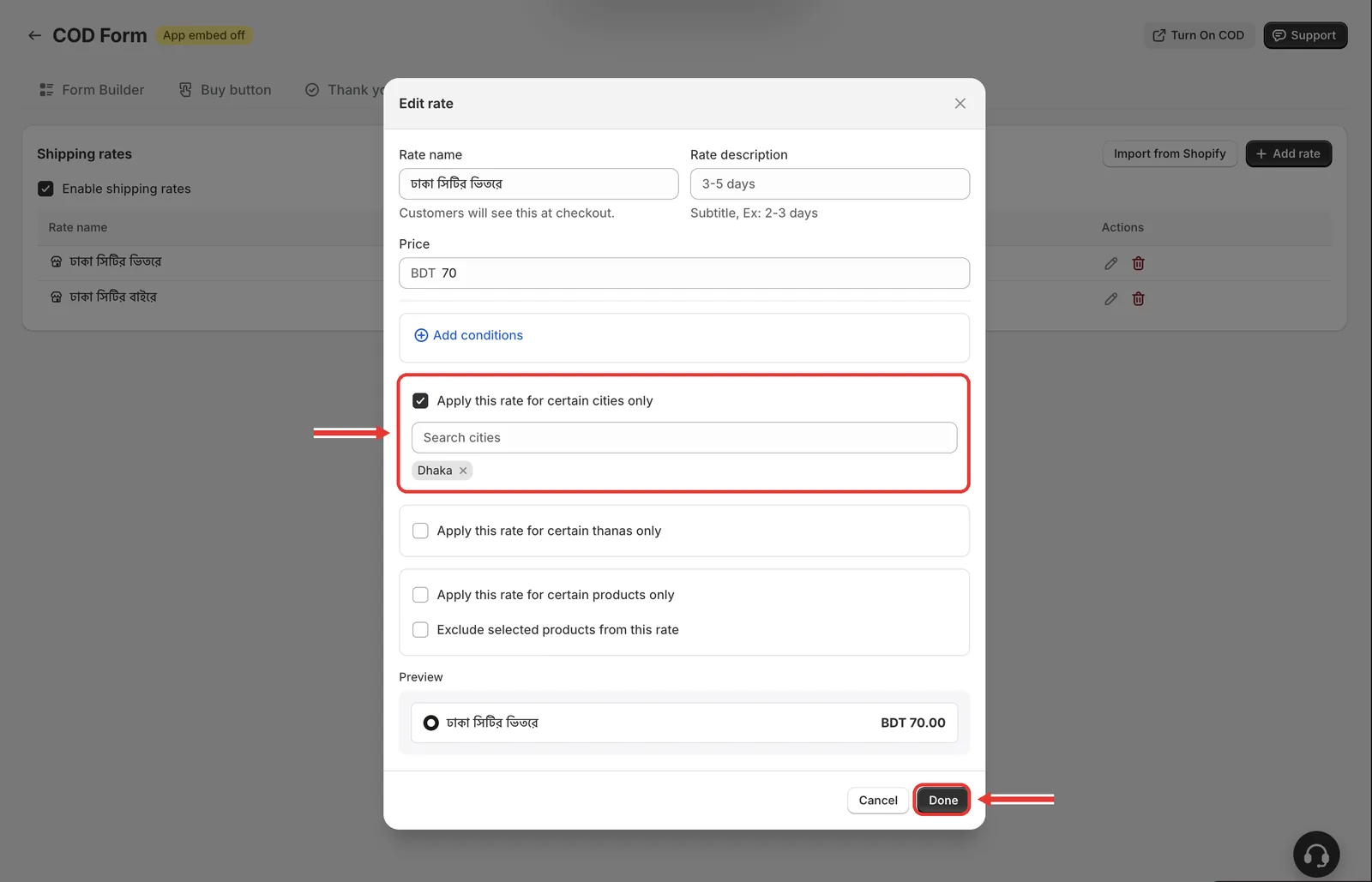
For example, for an “inside Dhaka” rate, tick Apply this rate for certain cities only, search for Dhaka in Search cities and select it. Click Done.
Then add a second rate, for example “ঢাকা সিটির বাইরে” (outside Dhaka city) at a higher price, limited to every other city.
4. Manage your rates
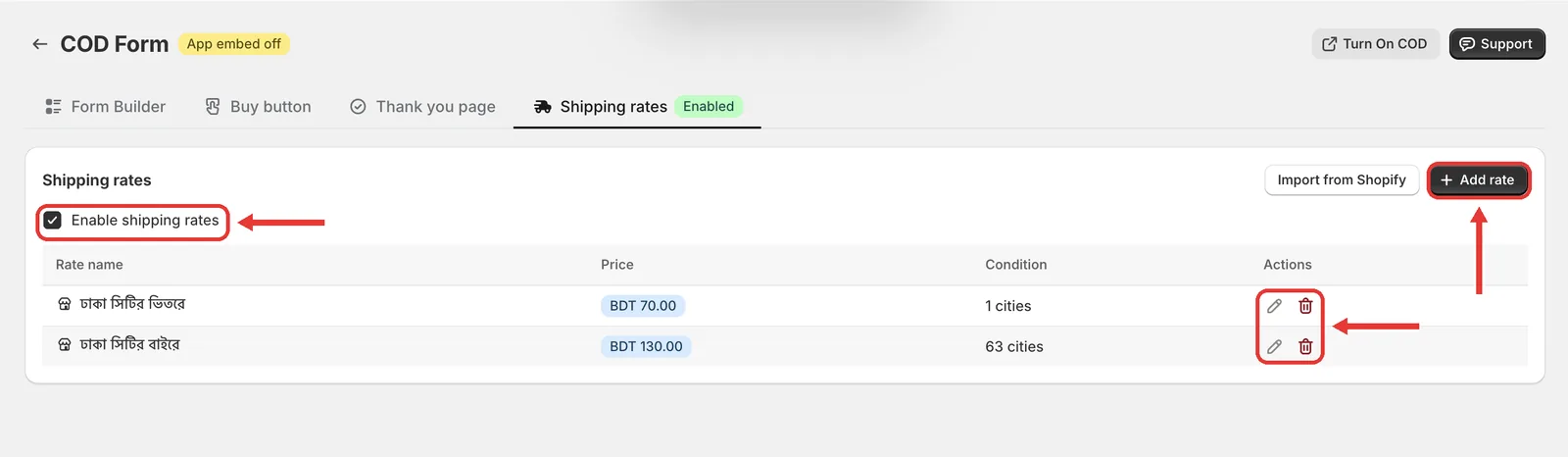
Your rates appear in a table with their Price and Condition, for example “1 cities” or “63 cities”. In Actions:
- Pencil edits the rate.
- Bin deletes it.
Tips
- Cover every area. If no rate matches a customer’s city, they see no shipping option. Make sure each district falls under at least one rate.
- The form must show shipping. Keep Shipping options switched on in the Form builder.
- Turning off rates. Untick Enable shipping rates to stop charging delivery. Your rates are kept for later.
Next steps
- Customise the thank you page
- Connect a courier to ship the orders