
SMS notifications
The app can text customers at each step of their order, from confirmation to delivery, and text you about new orders. Each message can be switched on or off and reworded.
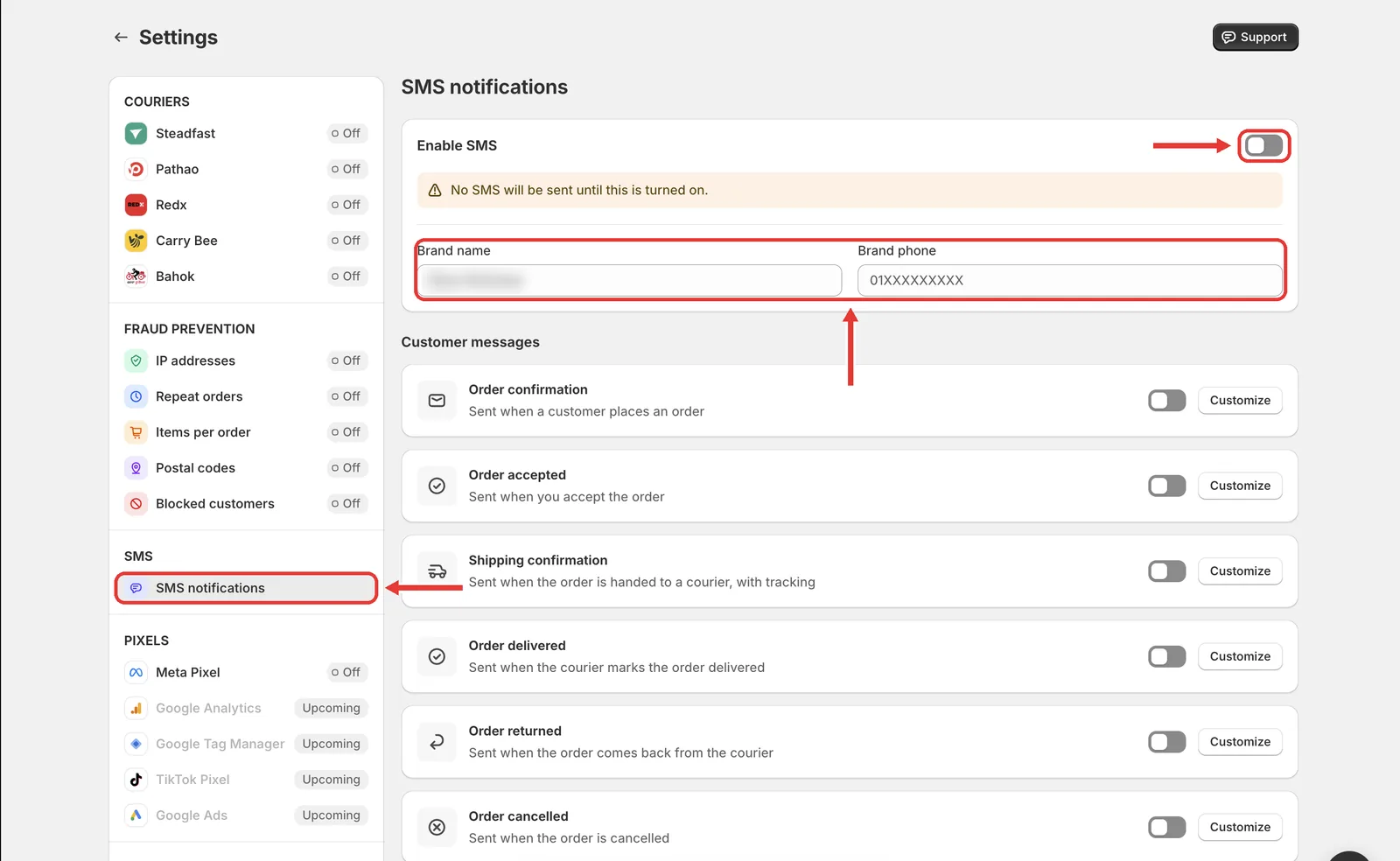
Go to Settings and click SMS notifications under SMS in the sidebar.
1. Turn on SMS
- Switch on Enable SMS. Until it’s on, no SMS is sent, even if individual messages are switched on.
- Enter your Brand name. It appears in messages as
{{brand_name}}, for example “Thank you for choosing your brand”. - Enter your Brand phone, in the format
01XXXXXXXXX. Customers see it as{{brand_phone}}, and owner notifications are sent to this number.
2. Choose which customers’ messages to send
Under Customer messages, switch on the messages you want:
| Message | Sent when |
|---|---|
| Order confirmation | A customer places an order |
| Order accepted | You accept the order |
| Shipping confirmation | The order is handed to a courier, with tracking |
| Order delivered | The courier marks the order delivered |
| Order returned | The order comes back from the courier |
| Order cancelled | The order is cancelled |
3. Customise a message
Click Customize next to a message to edit its text.
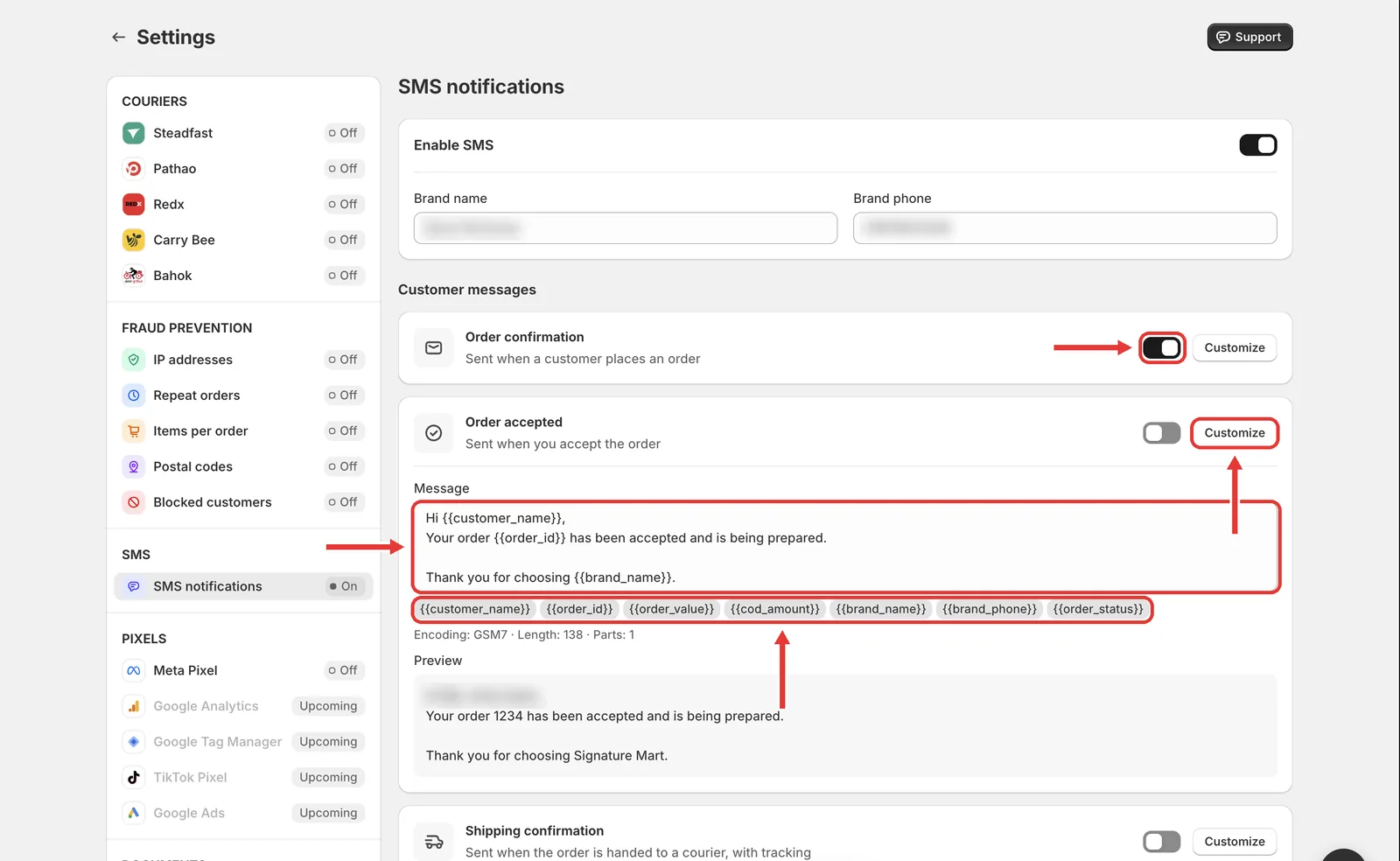
- Edit the text in Message.
- Click a variable below the box to insert it. Each variable is replaced with that order’s own details:
| Variable | Replaced with |
|---|---|
{{customer_name}} |
The customer’s name |
{{order_id}} |
The order number |
{{order_value}} |
The order total |
{{cod_amount}} |
The cash to collect on delivery |
{{brand_name}} |
Your brand name |
{{brand_phone}} |
Your brand phone |
{{order_status}} |
The order’s current status |
- Check the Preview, which shows the message with sample details.
Under the box, the app shows the message’s Encoding, Length and Parts. One SMS part holds about 160 English characters. Bangla text uses Unicode encoding, which fits about 70 characters per part. Longer messages are sent as several parts and cost more.
Keep messages short. A message of 2 parts costs twice as much as one.
4. Get notified yourself
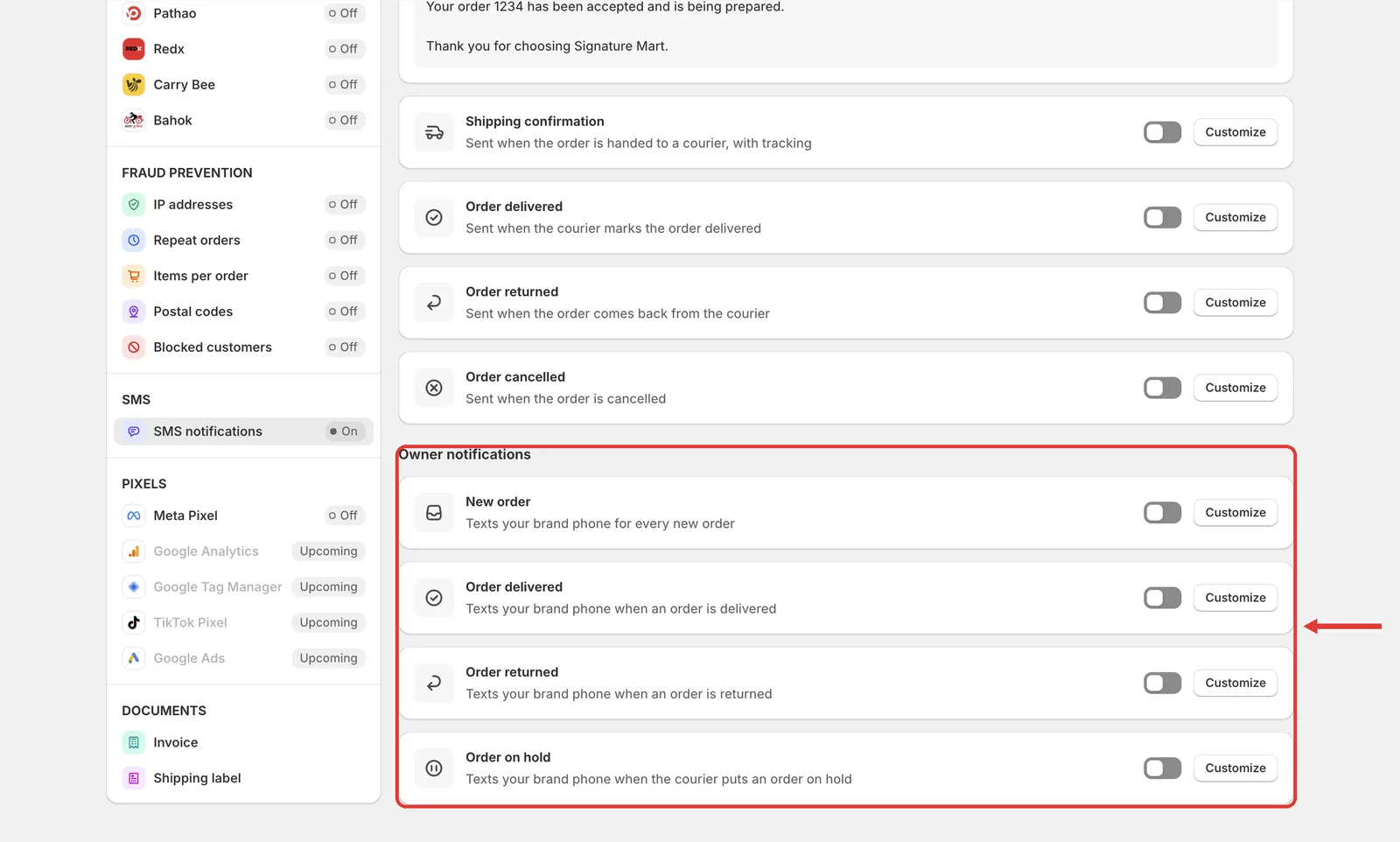
Under Owner notifications, choose which texts go to your Brand phone:
| Notification | Sent when |
|---|---|
| New order | Every new order |
| Order delivered | An order is delivered |
| Order returned | An order is returned |
| Order on hold | The courier puts an order on hold |
Each has its own Customize button, like the customer messages.
5. Save
Save your changes. The sidebar shows SMS notifications: On when SMS is enabled.
Troubleshooting
| Problem | Fix |
|---|---|
| No SMS is sent | Check Enable SMS is on and the message itself is switched on. |
| Owner notifications don’t arrive | Check the Brand phone is correct and in 01XXXXXXXXX format. |
| A message shows a variable’s name instead of its value | Insert variables with the buttons so the spelling is exact, for example {{customer_name}}. |
| Messages cost more than expected | Check Parts under the message. Shorten it, or use English text, to fit in one part. |