
Fraud prevention
Fraud prevention rules stop suspicious orders at the COD form, before they reach you. Each rule has its own page under Fraud prevention in Settings, and shows On or Off in the sidebar.
When a rule blocks an order, the customer sees that rule’s block message. Every message is editable; the defaults are in Bangla.
| Rule | Blocks |
|---|---|
| IP addresses | Orders from IP addresses you list |
| Repeat orders | A second order from the same customer too soon |
| Items per order | Orders with too many items |
| Postal codes | Orders to postal codes you don’t serve |
| Blocked customers | Orders from phone numbers or emails you list |
IP addresses
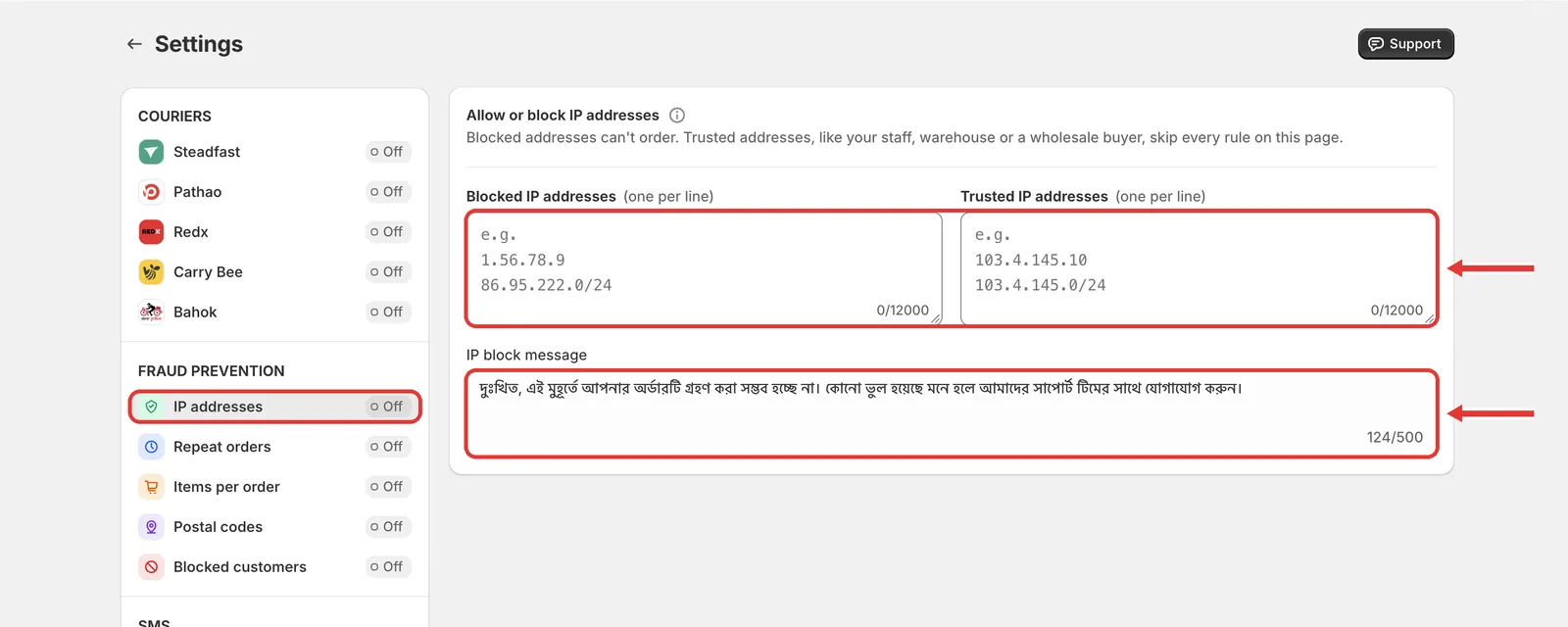
Open IP addresses.
- Blocked IP addresses: these can’t order. Add one per line, for example
1.56.78.9, or a whole range like86.95.222.0/24. - Trusted IP addresses: these skip every fraud rule, for example your staff, warehouse or a wholesale buyer.
- IP block message: what a blocked customer sees.
Repeat orders
Open Repeat orders and switch on Limit repeat orders from the same customer. A customer who already ordered can’t order again until the time has passed.
- Choose One order per customer every, for example 1 hour.
- Choose how to recognise a returning customer: by phone number, email address or IP address.
- Edit the Repeat order block message. Use
{remaining}for the time left before they can order again, and{window}for the full time you set.
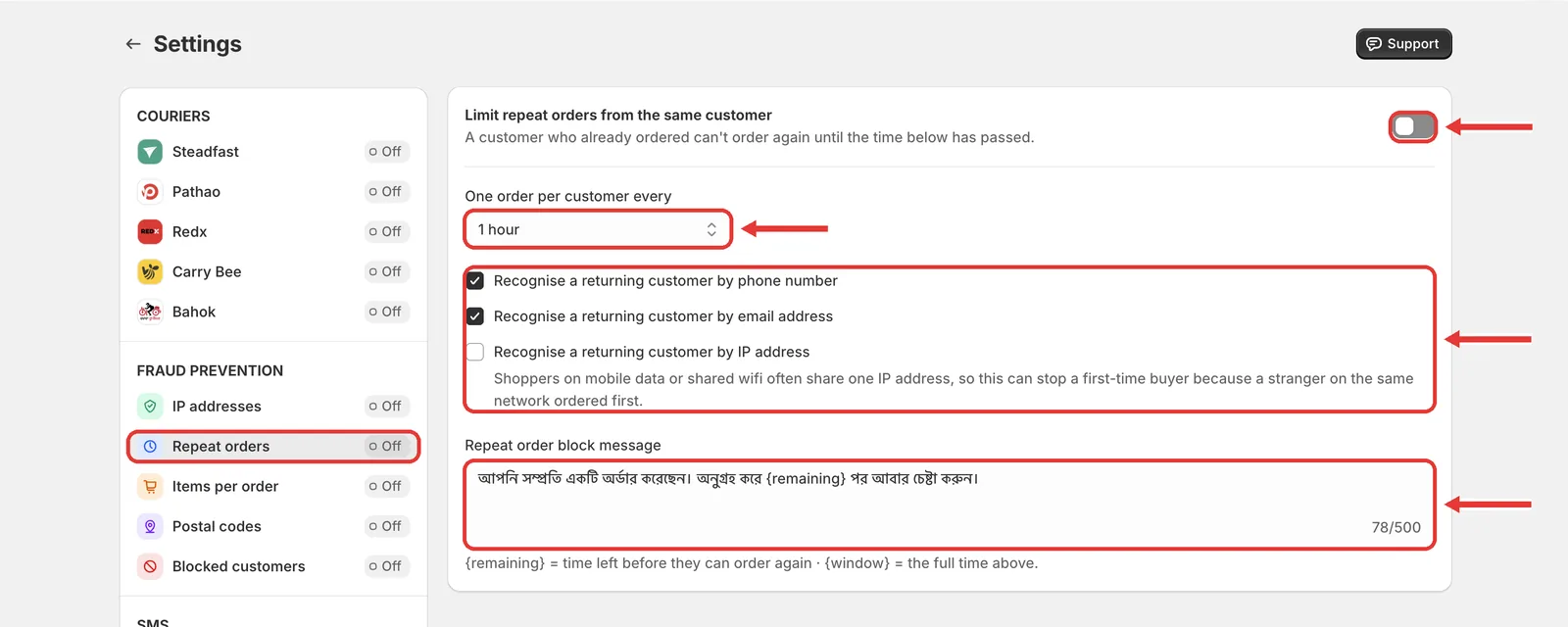
Avoid recognising customers by IP address unless you need to. Shoppers on mobile data or shared wifi often share one IP address, so a first-time buyer can be blocked because a stranger on the same network ordered first.
Items per order
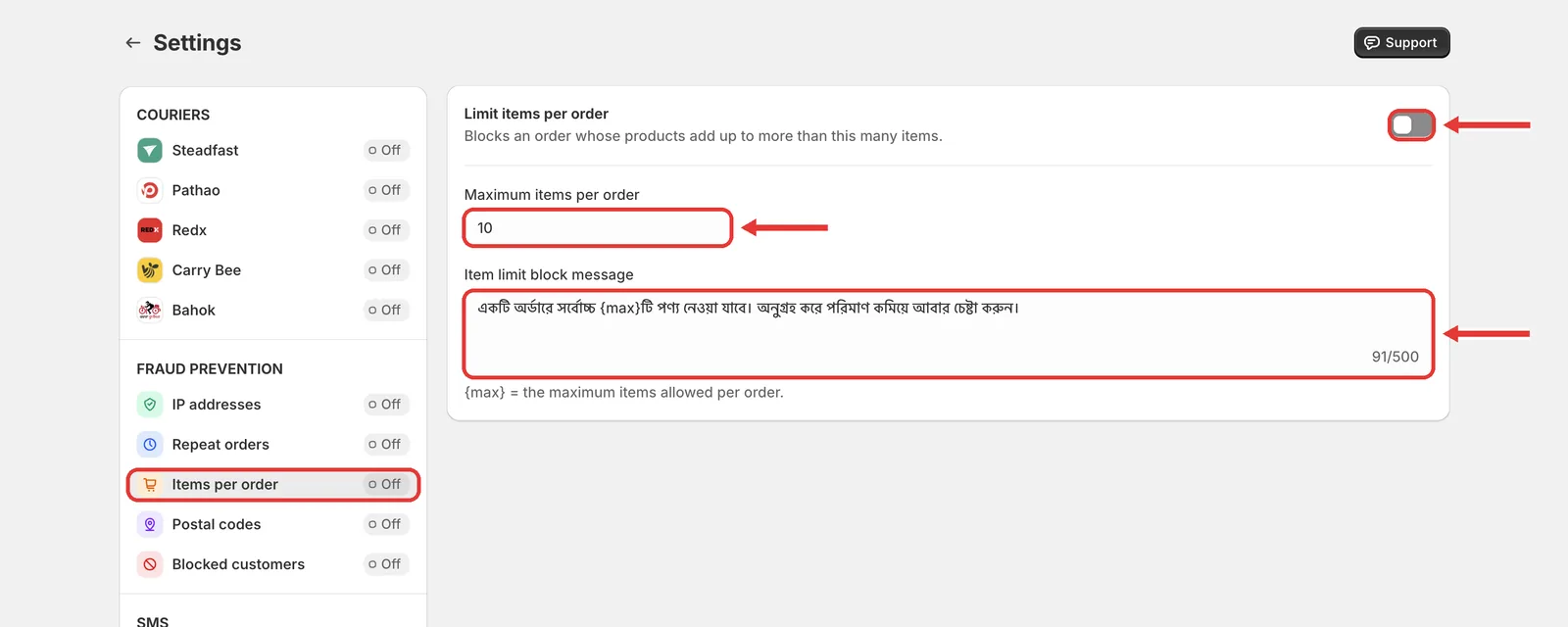
Open Items per order and switch on Limit items per order. It blocks an order whose products add up to more than the limit.
- Set Maximum items per order, for example
10. - Edit the Item limit block message. Use
{max}for the limit you set.
Postal codes
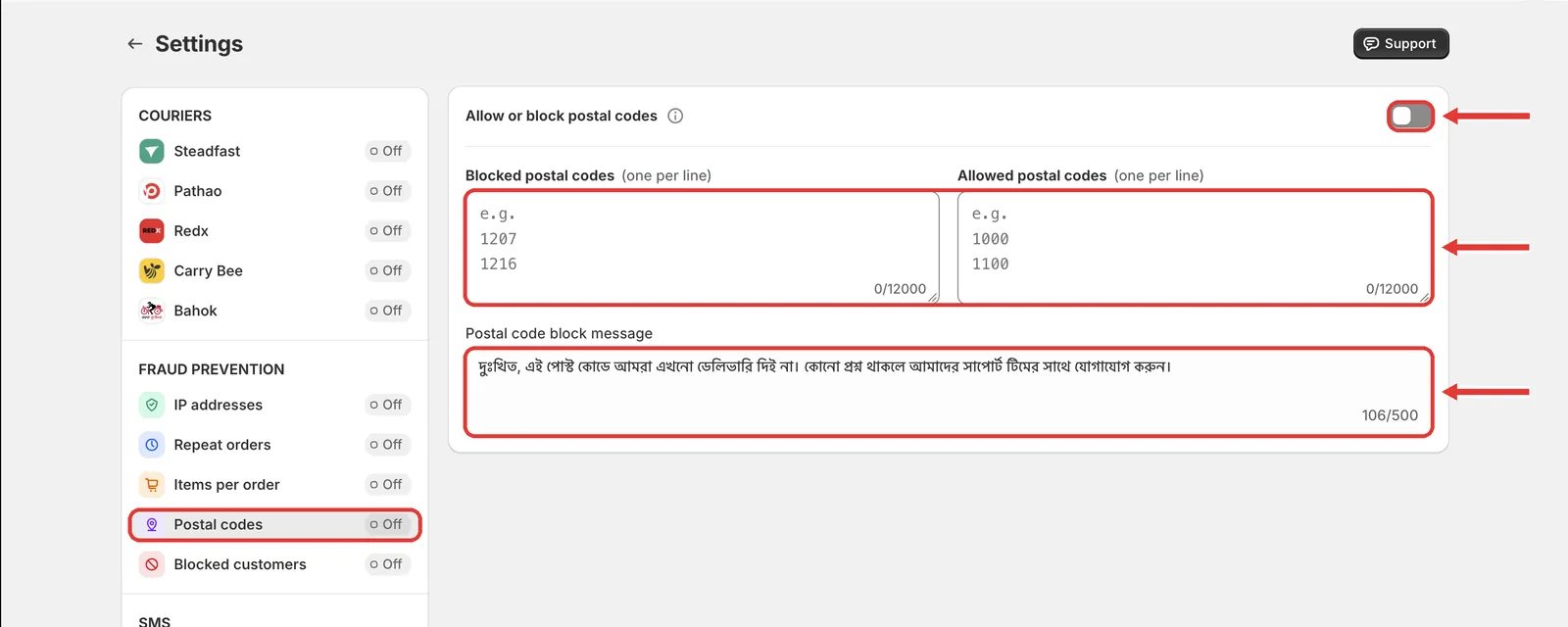
Open Postal codes and switch on Allow or block postal codes.
- Blocked postal codes: orders to these are refused, for example areas you don’t deliver to.
- Allowed postal codes: if you fill this in, only these postal codes can order.
- Postal code block message: what a blocked customer sees.
Add one postal code per line.
The COD form needs a postal code field for this rule to work. Switch on Post code in the Form builder.
Blocked customers
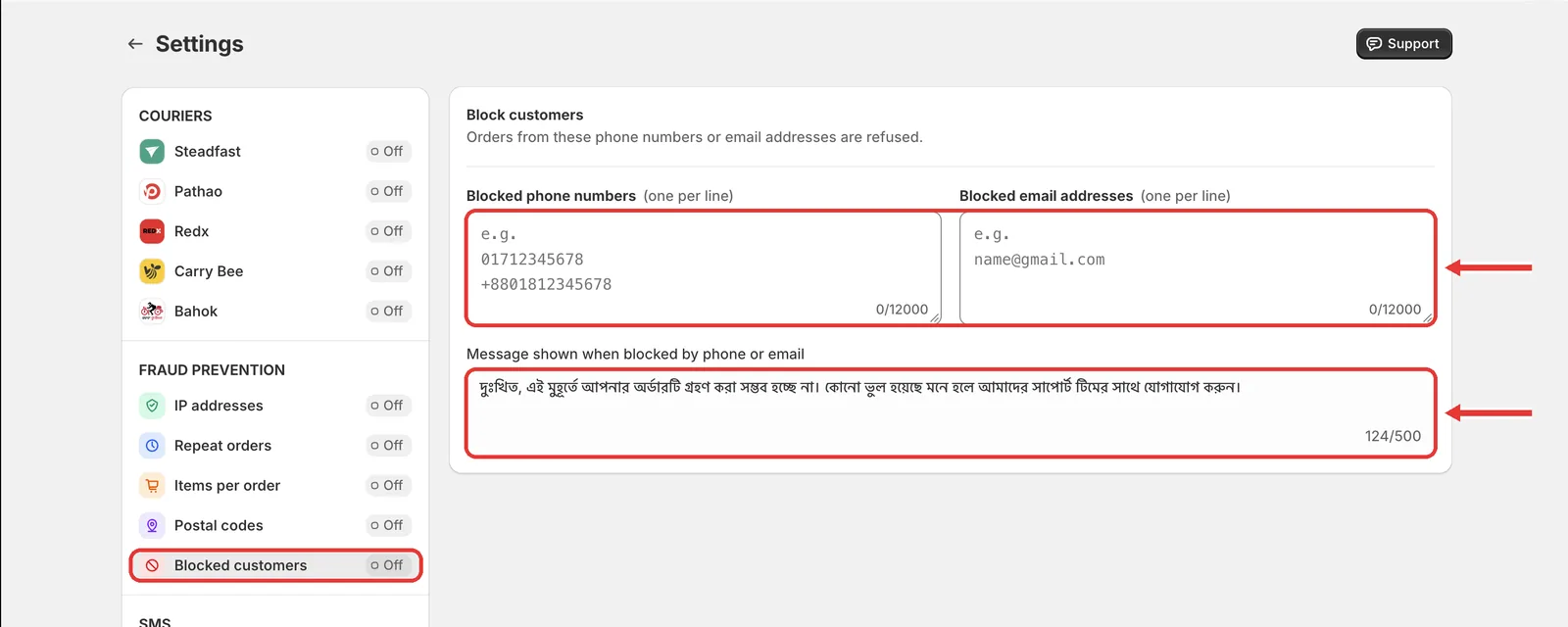
Open Blocked customers. Orders from these phone numbers or email addresses are refused.
- Blocked phone numbers: one per line, for example
01712345678or+8801812345678. - Blocked email addresses: one per line.
- Message shown when blocked by phone or email: what the customer sees.
See what was blocked
Analytics shows blocked orders by rule, so you can see which rules are working. Not sure who to block? Run a fraud check on a customer’s phone number first.