
CarryBee
Connect CarryBee to book parcels from your Shopify orders and get delivery updates back automatically. You copy three production credentials from CarryBee into the app, then point CarryBee’s webhook at the app.
Before you start
You need an active CarryBee merchant account. Keep two browser tabs open: the CarryBee merchant panel and Settings → Couriers → Carry Bee in the app.
1. Log in to CarryBee
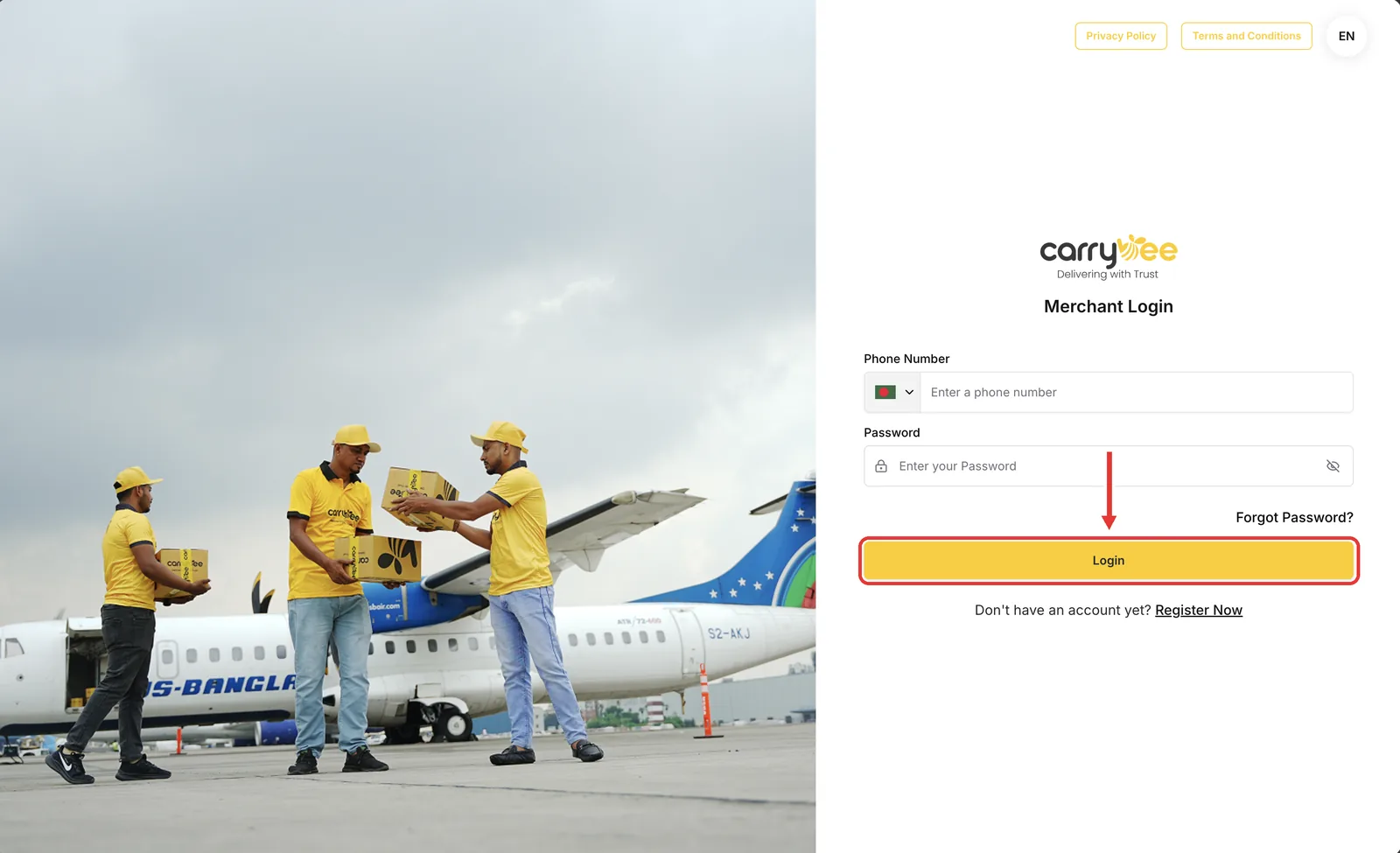
Go to merchant.carrybee.com/login, enter your phone number and password, and click Login.
2. Open API Integration
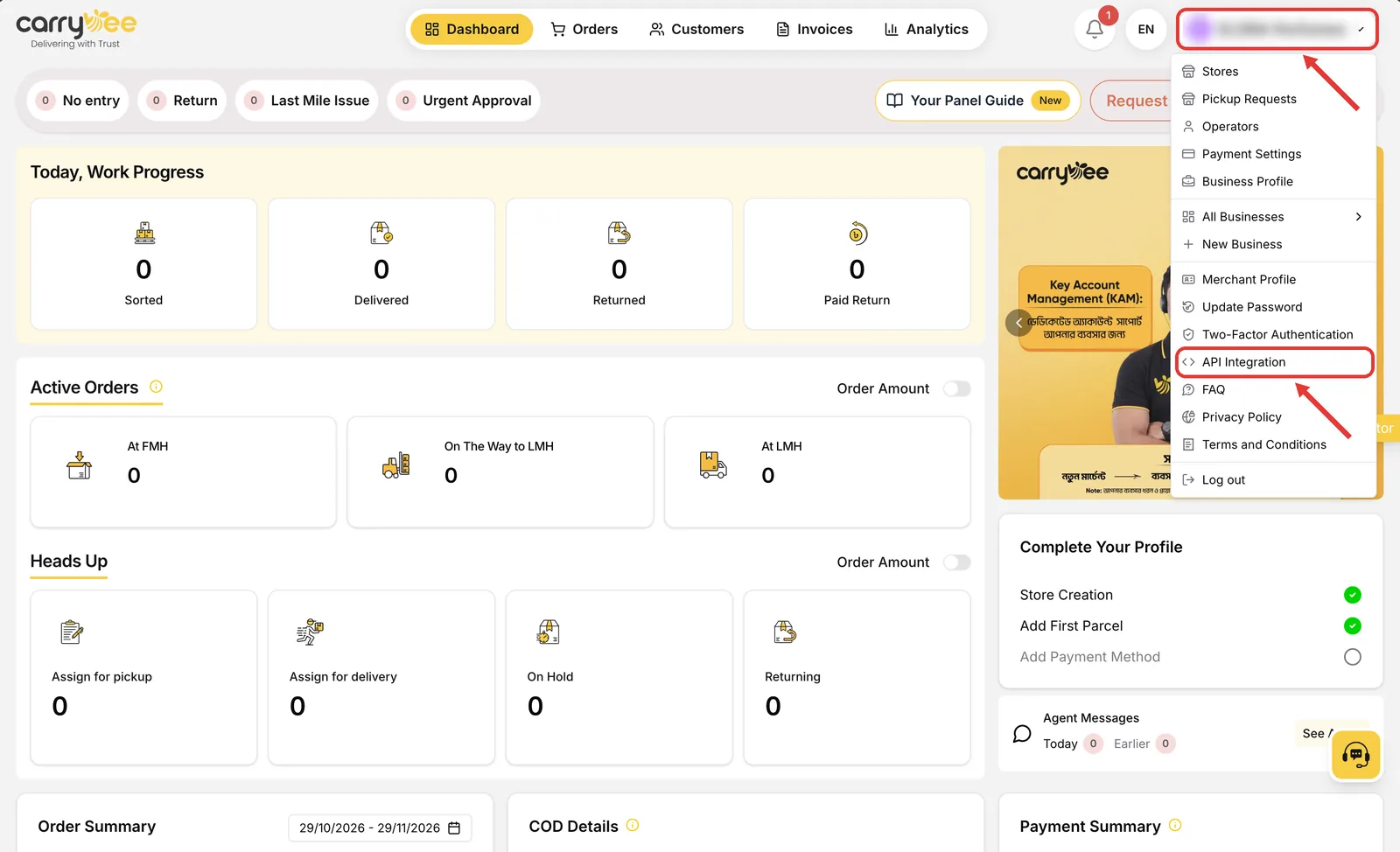
Click your business name at the top right, then click API Integration in the menu.
3. Copy your production credentials
The developer area opens on API Credentials. In the Production box, use the copy button next to each of these:
- Client ID
- Client Secret
- Client Context
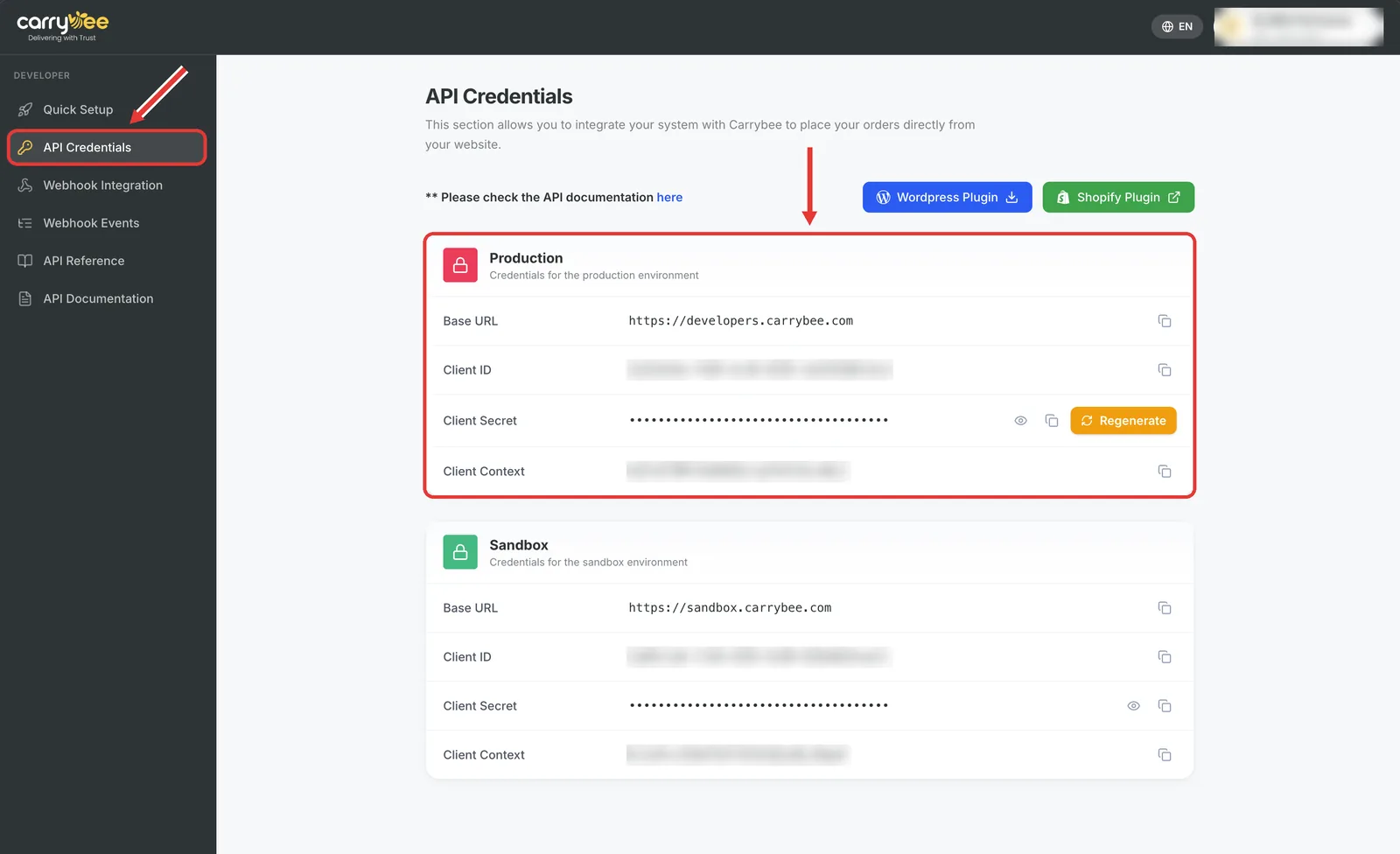
Use the Production credentials, not the Sandbox ones further down. Don’t click Regenerate unless you mean to: it replaces your secret and breaks any app already using the old one.
4. Paste the credentials into the app
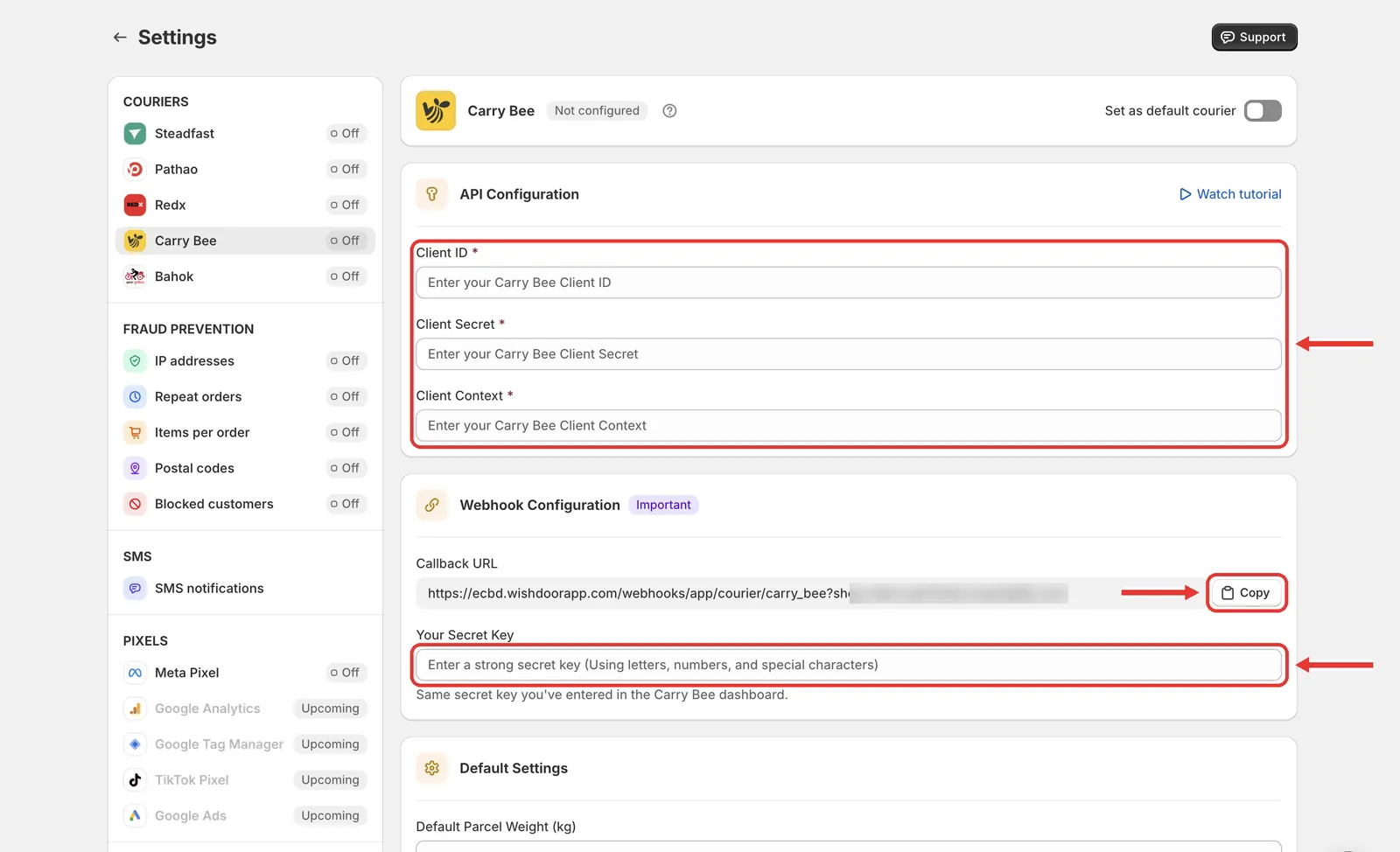
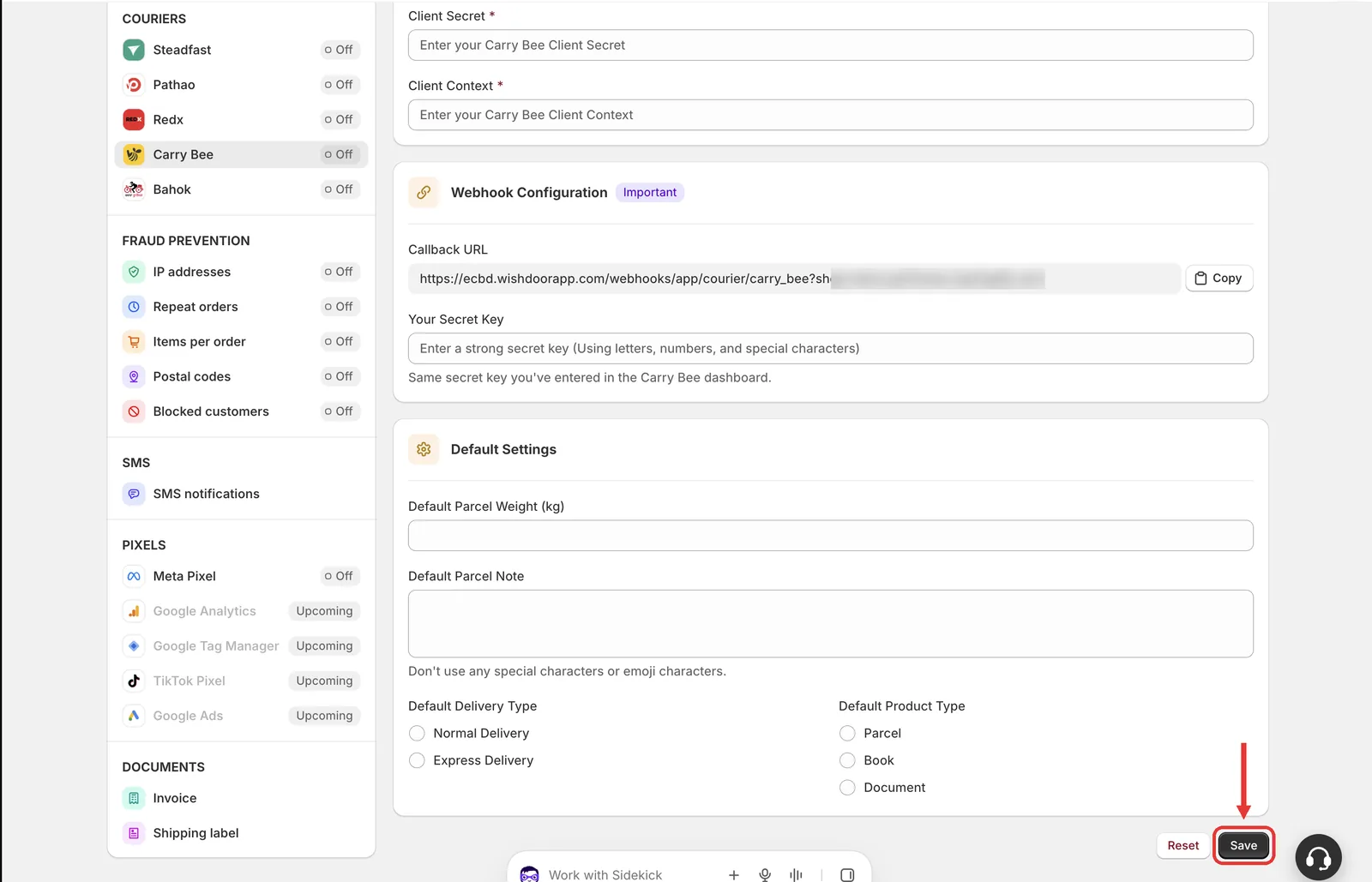
In the app, go to Settings → Couriers → Carry Bee.
- Paste the three values into Client ID, Client Secret and Client Context.
- In Your Secret Key, type a strong secret of your choice, using letters, numbers and special characters. Copy it; you need it in step 5.
- Click Copy next to the Callback URL.
5. Set up the webhook in CarryBee
The webhook lets CarryBee send delivery updates, such as delivered or returned, back to the app.
- In CarryBee’s developer sidebar, click Webhook Integration.
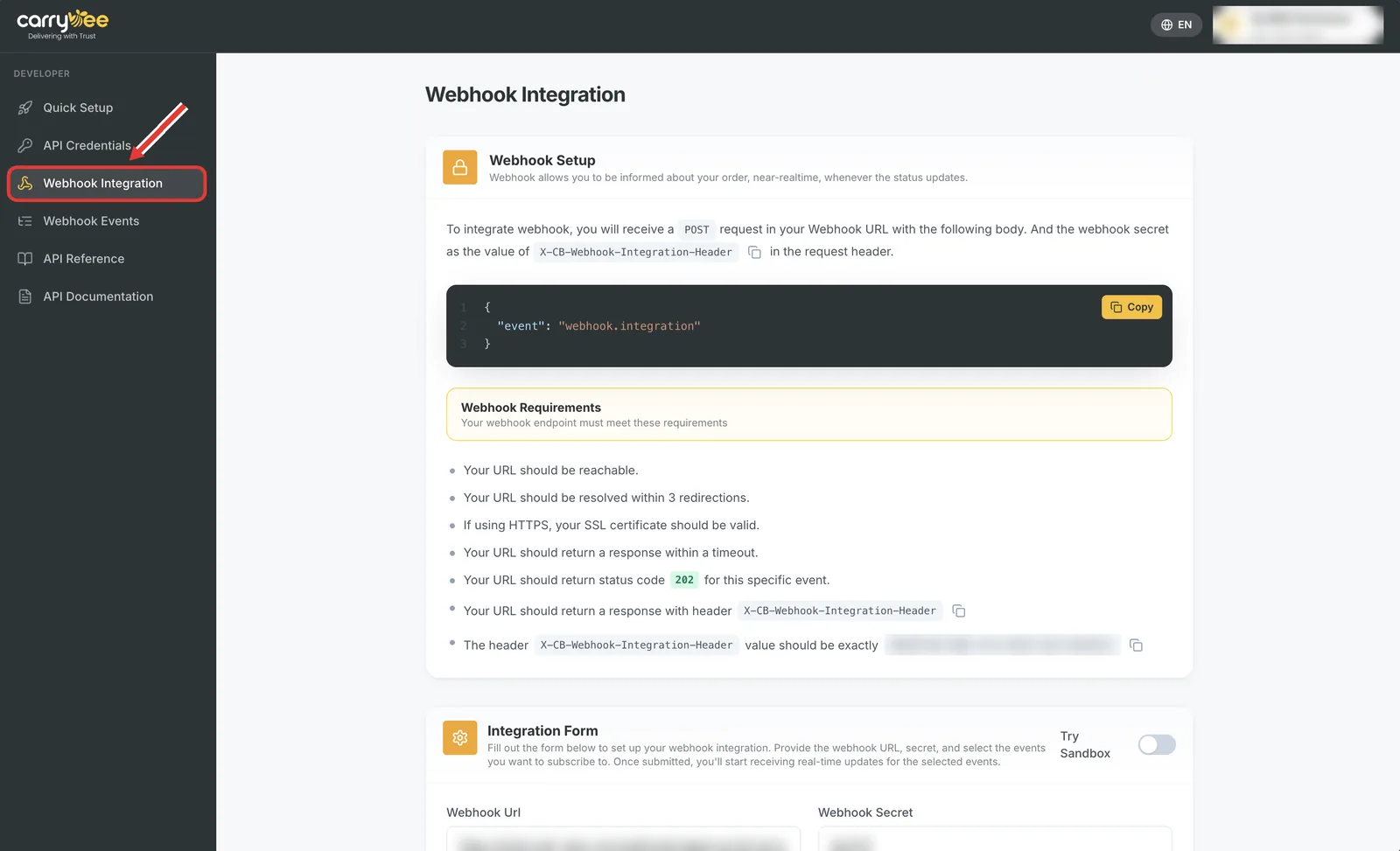
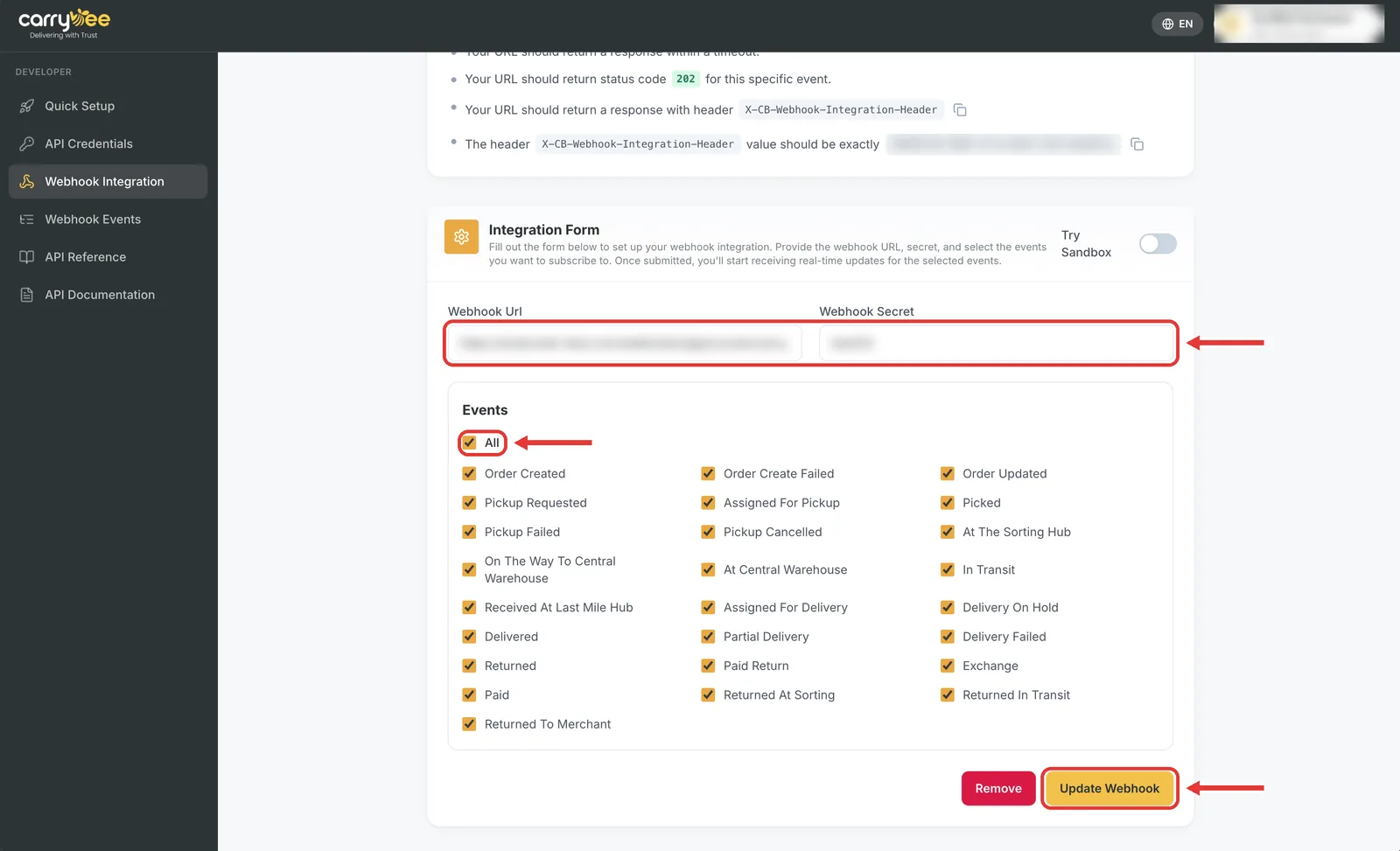
- Scroll to the Integration Form. Leave Try Sandbox switched off.
- Paste the app’s Callback URL into Webhook Url.
- Paste the same secret you set in the app into Webhook Secret.
- Under Events, tick All.
- Click Save Webhook. If a webhook already exists, the button reads Update Webhook.
6. Set your defaults and save
Back in the app, under Default Settings:
- Default Parcel Weight (kg): used when an order has no weight, for example
0.5. - Default Parcel Note: optional. Don’t use special characters or emoji.
- Default Delivery Type: Normal Delivery or Express Delivery.
- Default Product Type: Parcel, Book or Document.
Click Save.
Turn on Set as default courier at the top if you want CarryBee picked first when you assign orders.
Troubleshooting
| Problem | Fix |
|---|---|
| Saving fails | Copy all three credentials again with the copy buttons, and check they came from Production, not Sandbox. |
| Saving fails after a while | Someone may have clicked Regenerate in CarryBee. Copy the new Client Secret into the app. |
| Orders don’t update after delivery | The Webhook Url must match the app’s Callback URL exactly, and Webhook Secret must match Your Secret Key. Check Try Sandbox is off. |
| Parcel note rejected | Remove special characters and emoji from the Default Parcel Note. |
Next: assign your first order.